NEC Router Setup Guide
NEC Aterm Setup
Get Started

Network Connection Guide PPPoE (NEC Router)

Set up your NEC (Aterm) router in 5 precise steps. Please prepare the documents containing the line ID and Password provided by your internet service provider (e.g., GMO, Biglobe...).

1

Restore to Factory Settings (Reset)

First, we need to return the router to its original state:

  • Find the small hole labeled RESET on the back. Use a toothpick to press and hold it until the POWER light blinks red.
  • Unplug the power cable, wait for 10 seconds, and plug it back in.
  • Wait for about 2 minutes and check the light: if the POWER light is solid green, it is successful.
Illustration: Step 1
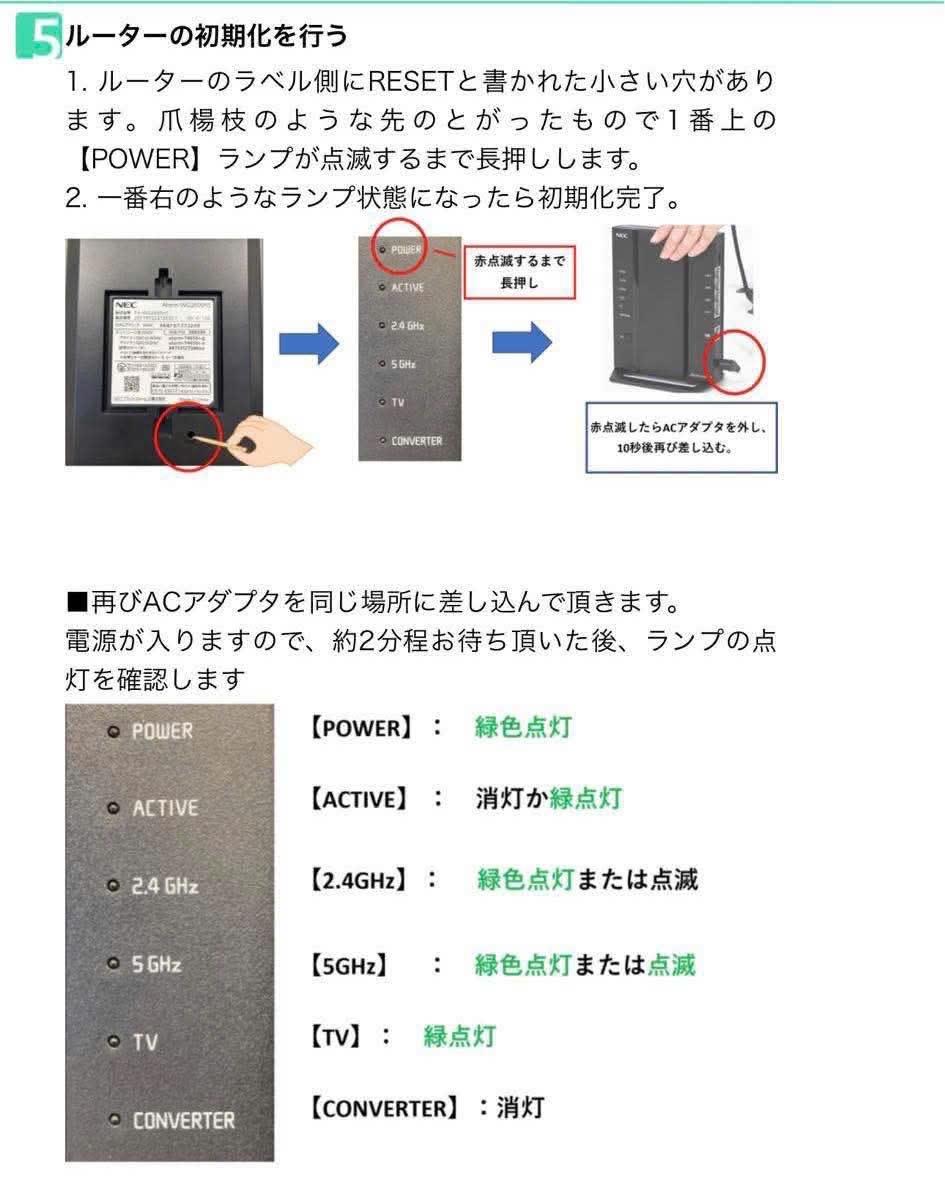
Reset NEC Router
2

Log in to the administration page

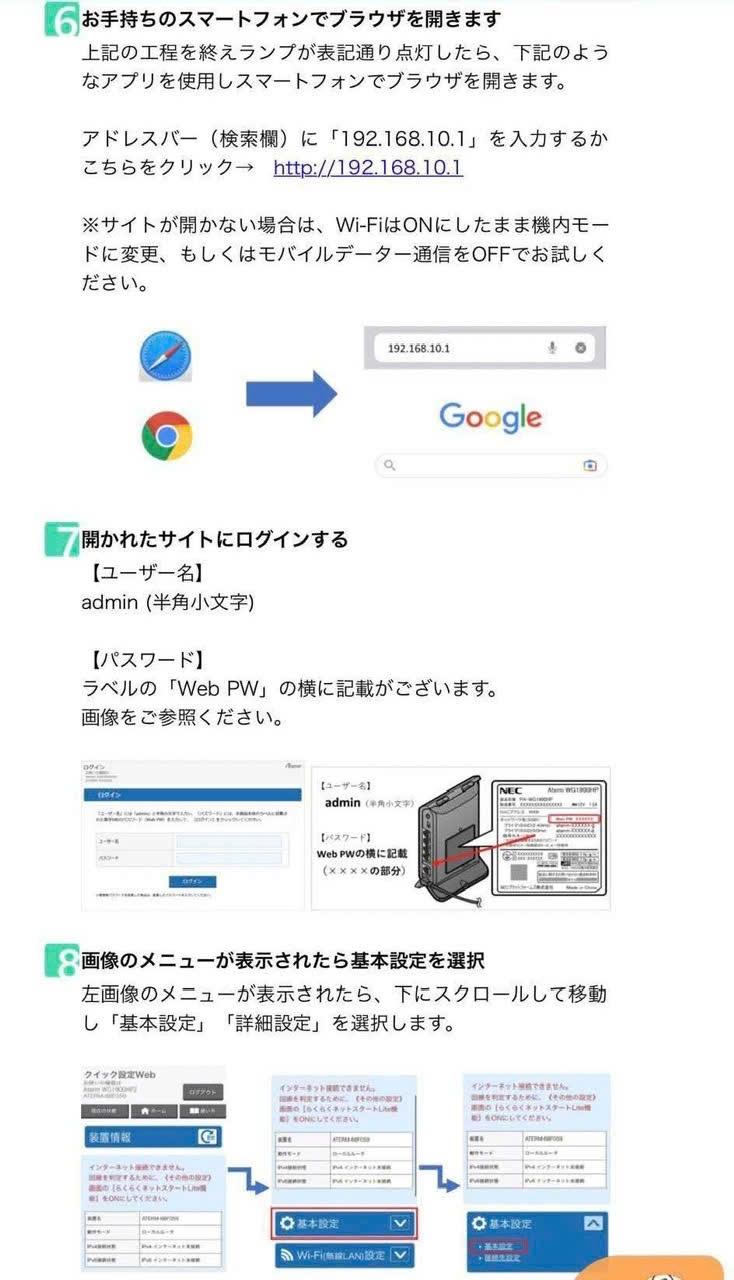
Connect your phone to the NEC device's WiFi. Then, open your browser (Safari/Chrome) and go to: 192.168.10.1

Enter the login information:

  • ユーザー名 (Username): type admin
  • パスワード (Password): Look at the characters next to the text "Web PW" on the sticker on the back of the router.

After logging in, scroll down and select "基本設定" (Basic Settings).

Illustration: Step 2
Login page ng administration 192.168.10.1
3

Switch to PPPoE mode

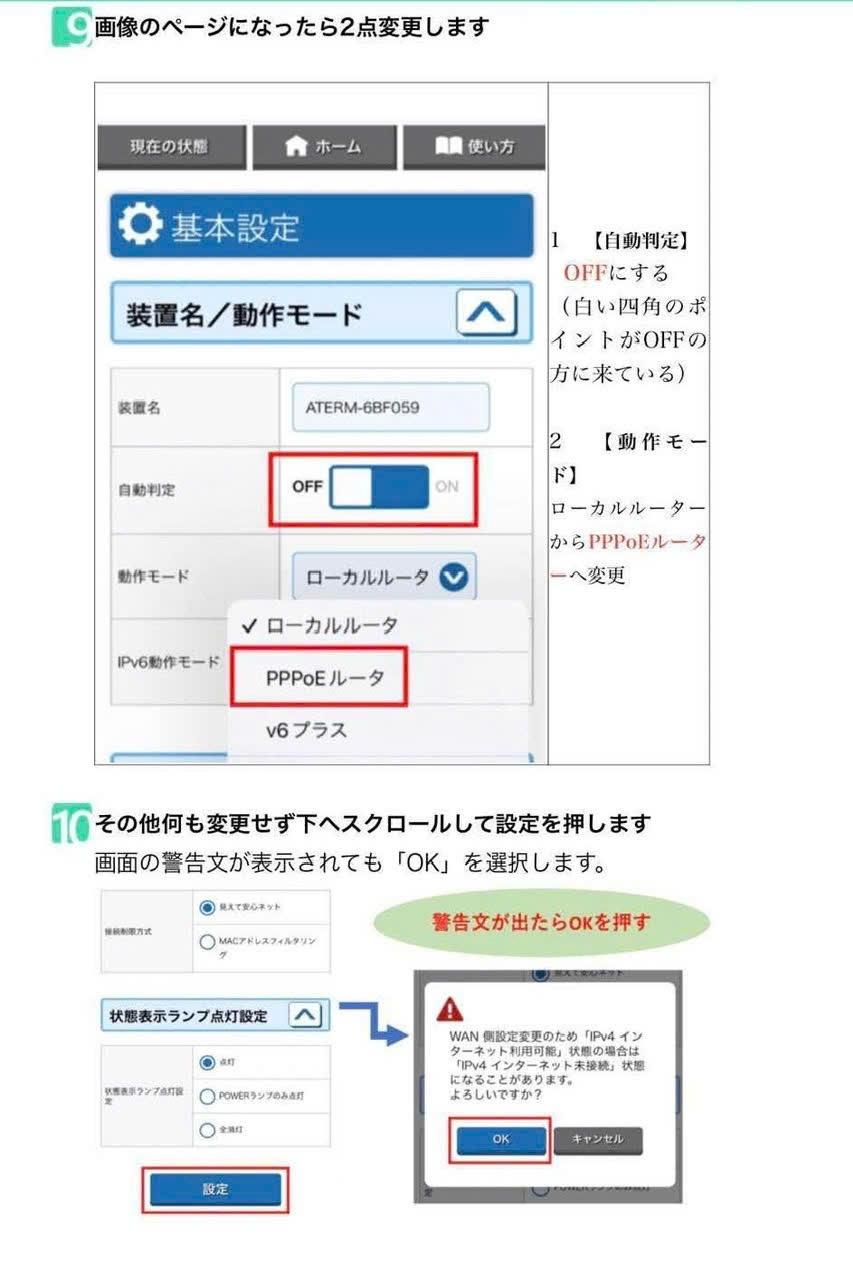
In the new interface, you need to change these 2 settings:

  • Line 自動判定 (Auto-detect): Move the switch to OFF.
  • Line 動作モード (Operation mode): Click and change it to PPPoEルータ.

Leave the other items unchanged, scroll down to the bottom, and click the blue "設定" (Set) button. If a warning appears, click OK.

Illustration: Step 3
Switching to PPPoE mode
4

Save settings and Return to Home page

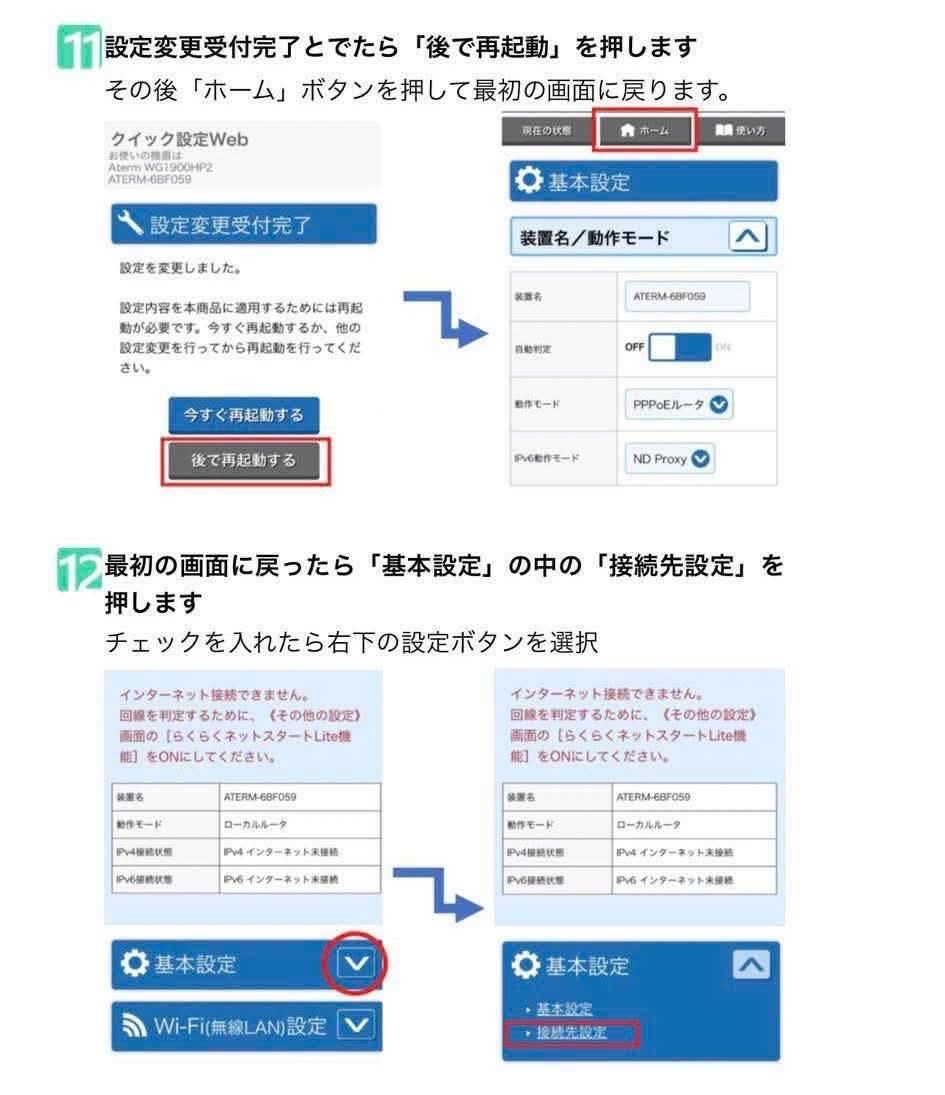
When the save completion screen appears:

  • Click the "後で再起動する" (Restart later) button.
  • Then, click the "ホーム" (Home) button in the top menu to return to the main screen.

Once back on the main screen, reopen the "基本設定" drop-down menu and select the line "接続先設定" (Connection settings).

Illustration: Step 4
Save settings and return to home page
5

Enter your Internet account

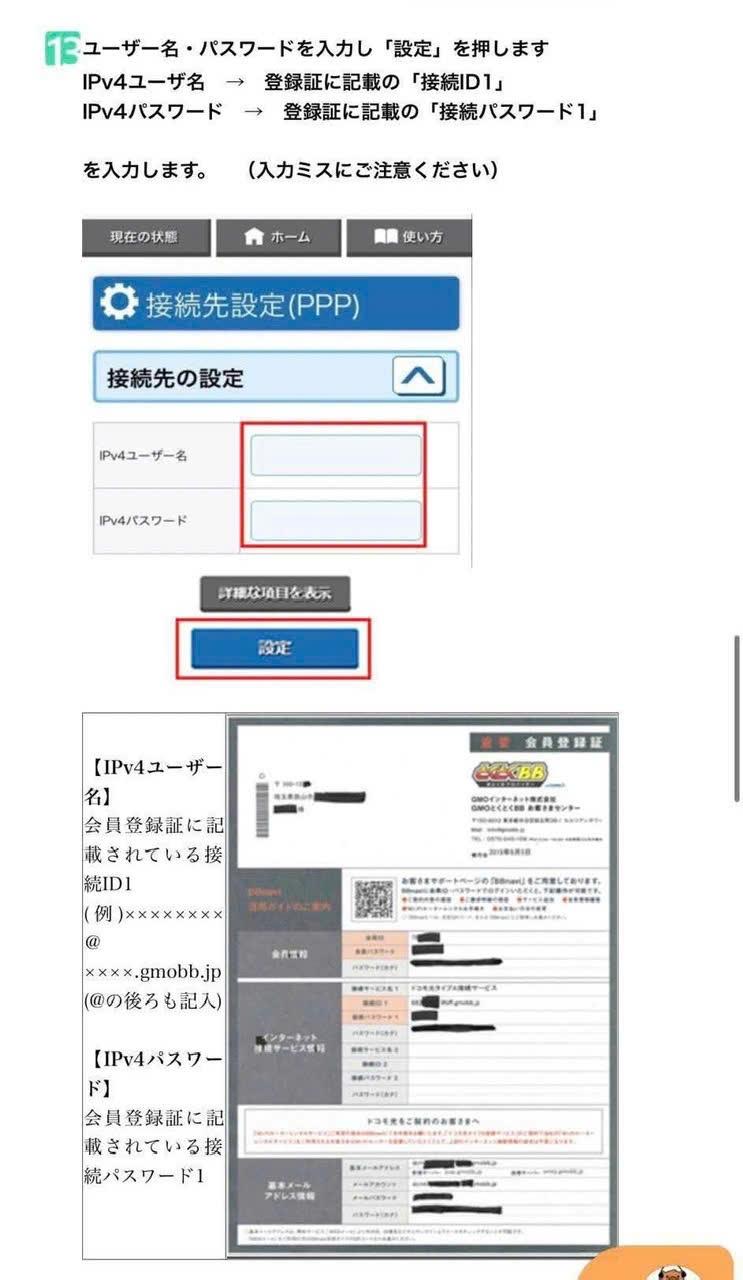
The "接続先の設定" (PPP Connection Settings) screen will appear. Take the documents from your provider and fill them in carefully:

  • IPv4ユーザ名 (Username):
    Enter the Connection ID (Usually includes the @... part at the end).
  • IPv4パスワード (Password):
    Enter the Connection Password (Make sure to type uppercase and lowercase letters correctly).

After entering the information, click the blue "設定" (Set) button at the bottom.

Done! Wait for about 1-2 minutes and open YouTube to check if you have internet access!

Illustration: Step 5
Entering PPPoE account

© 2024 - Local Network Setup Guide (NEC Router)