
Note before starting: Please prepare your So-net account's User ID and Password (found in the contract sent to your home). Also, have your Yucho Bank app/card ready.
Download Yucho Bank Apps
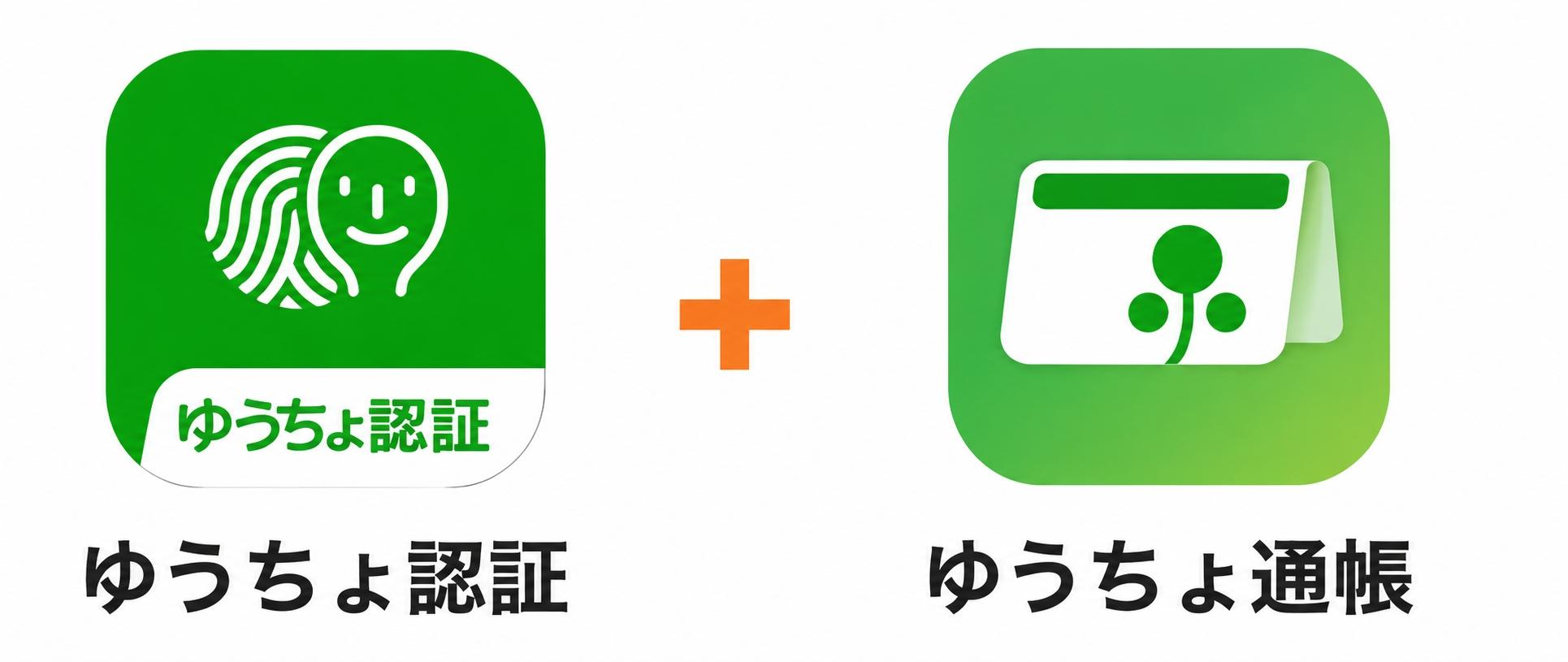
Before starting, you need to install 2 Yucho apps on your phone (as shown):
- Yucho Authentication (ゆうちょ認証): App for identity verification.
- Yucho Passbook (ゆうちょ通帳): App to get your customer code.
* If you already have these 2 apps installed, please skip this step.
Access and Login
Access the So-net homepage via Chrome or Safari browser at:
www.so-net.ne.jp
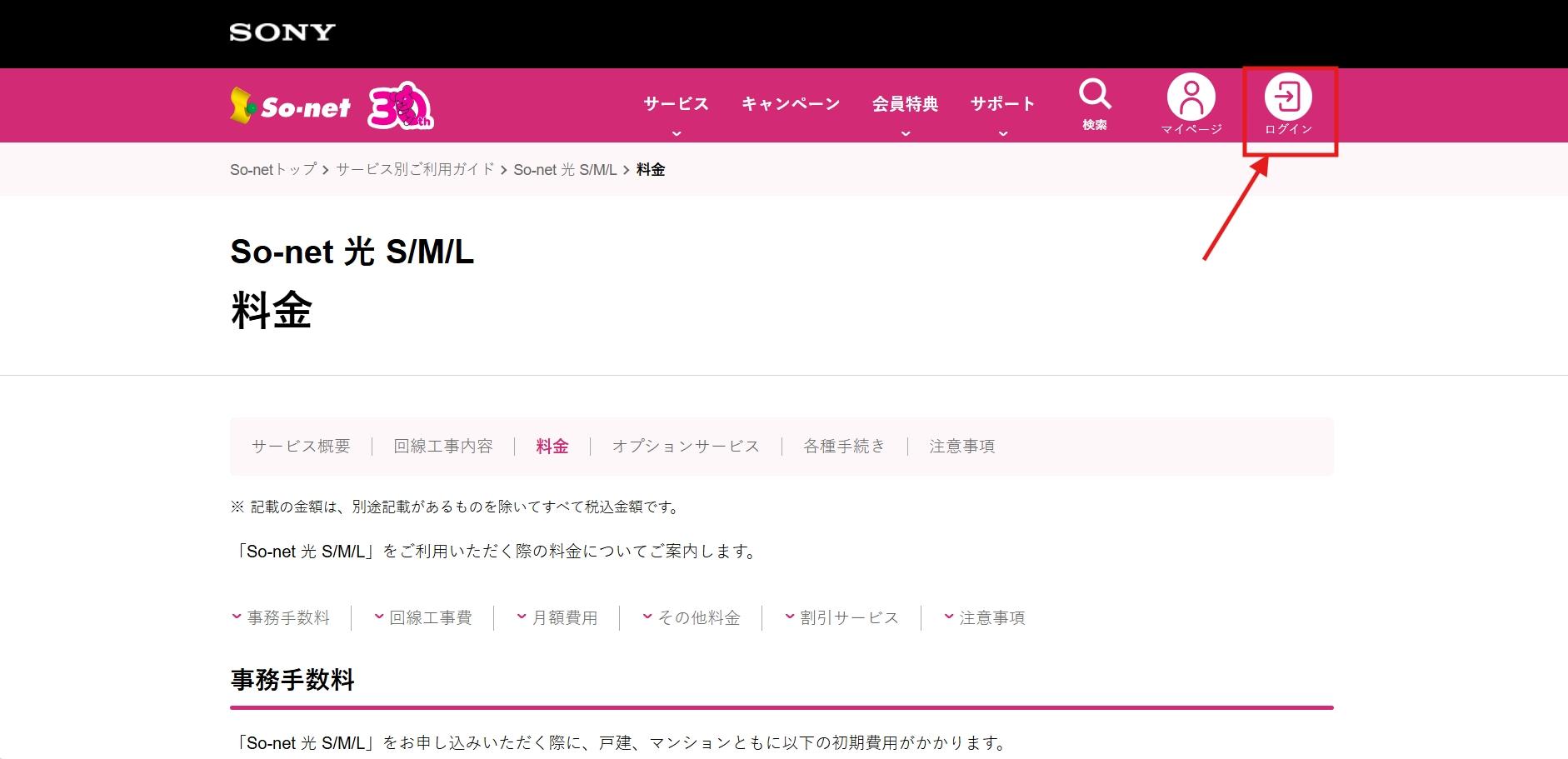
On the top pink menu, click the icon with the text:
ログイン (Login)
Enter User ID
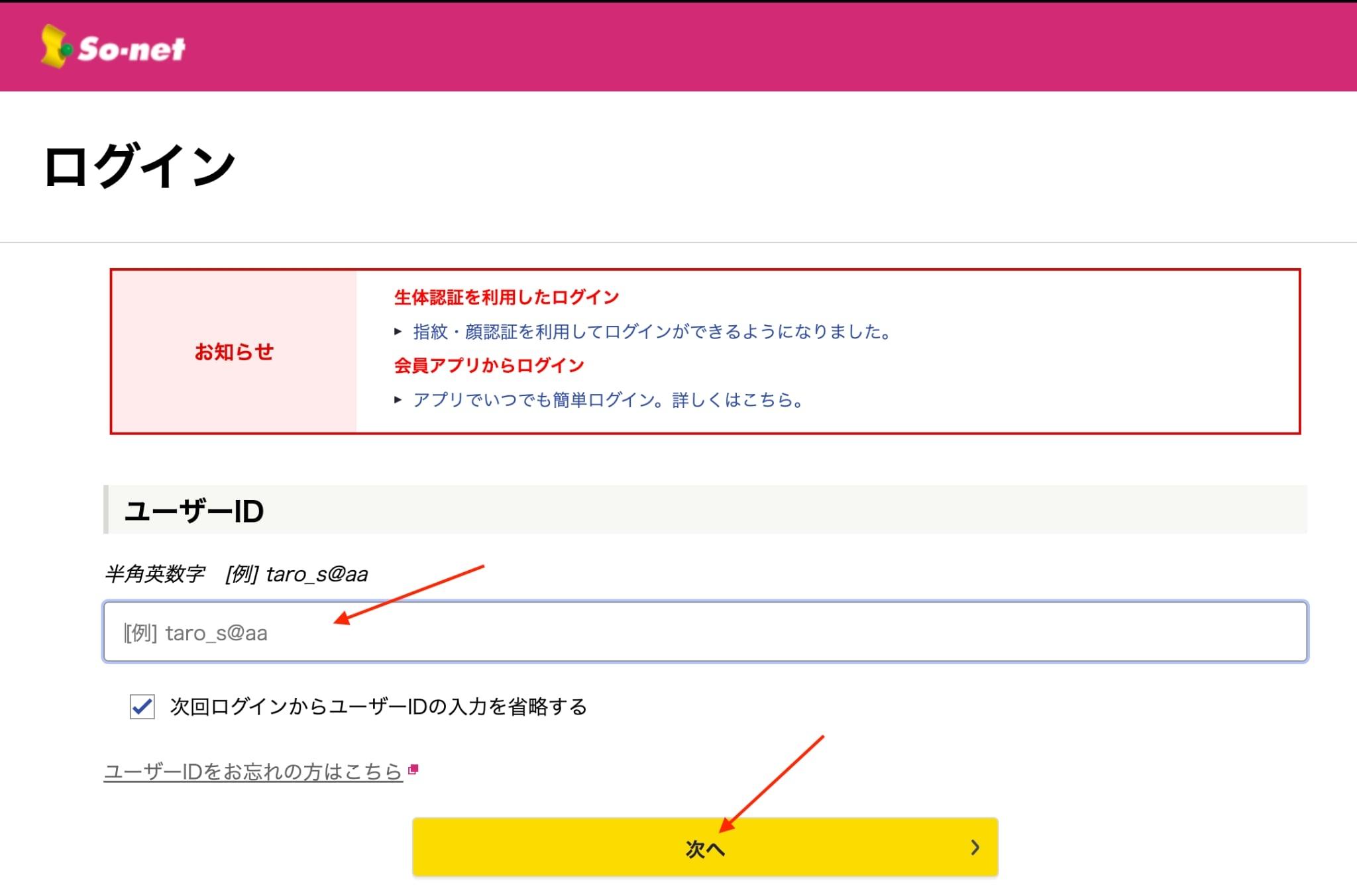
The login screen will appear.
- In the ユーザーID (User ID) field, enter your ID (e.g., taro_s@aa).
- After entering, click the yellow button 次へ > (Next).
Enter Password
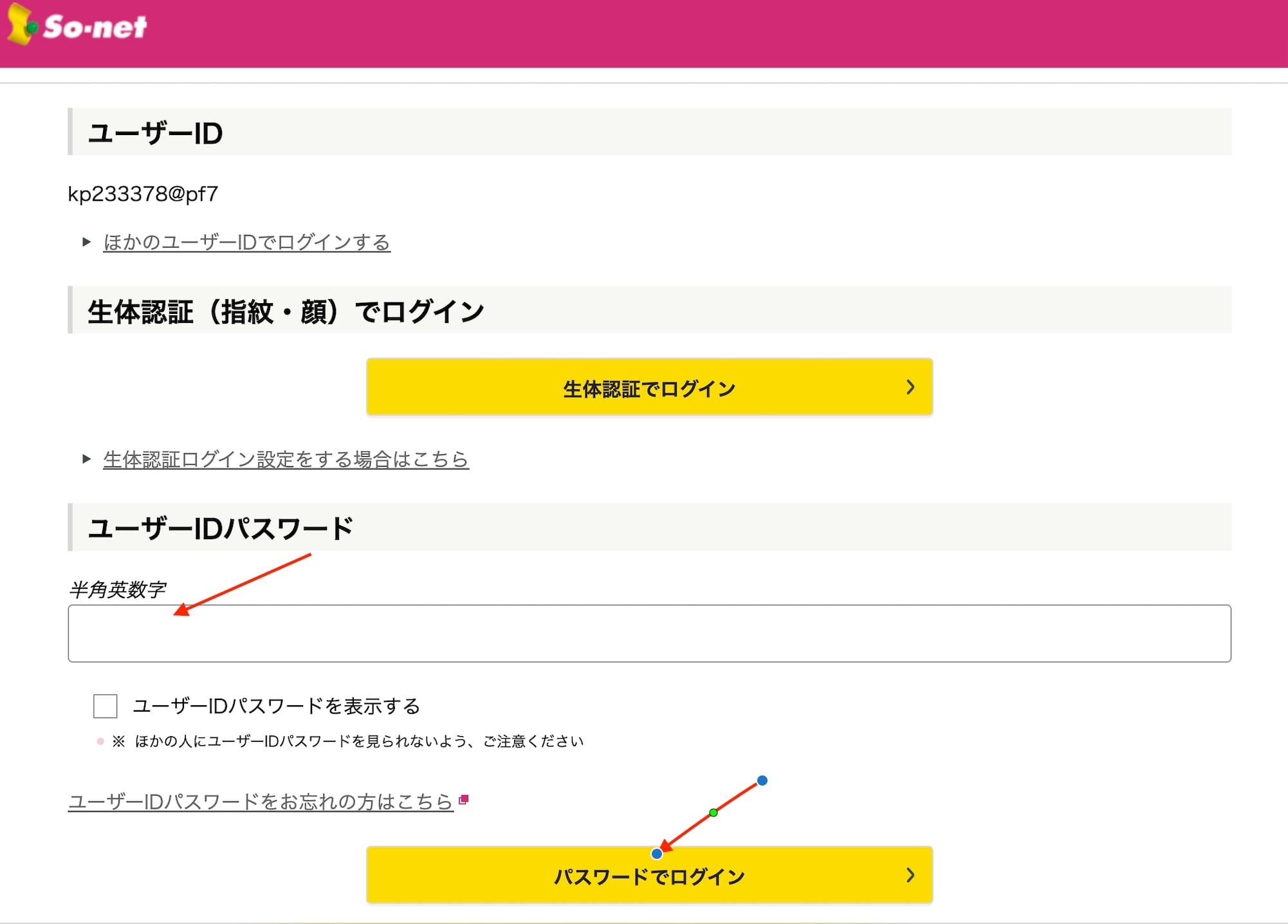
On the next screen, scroll down to the password section.
- In the ユーザーIDパスワード (User ID Password) field, enter the password associated with your ID.
- Then click the yellow button パスワードでログイン > (Login with password).
Go to My Page
After logging in, you will be redirected to the homepage.
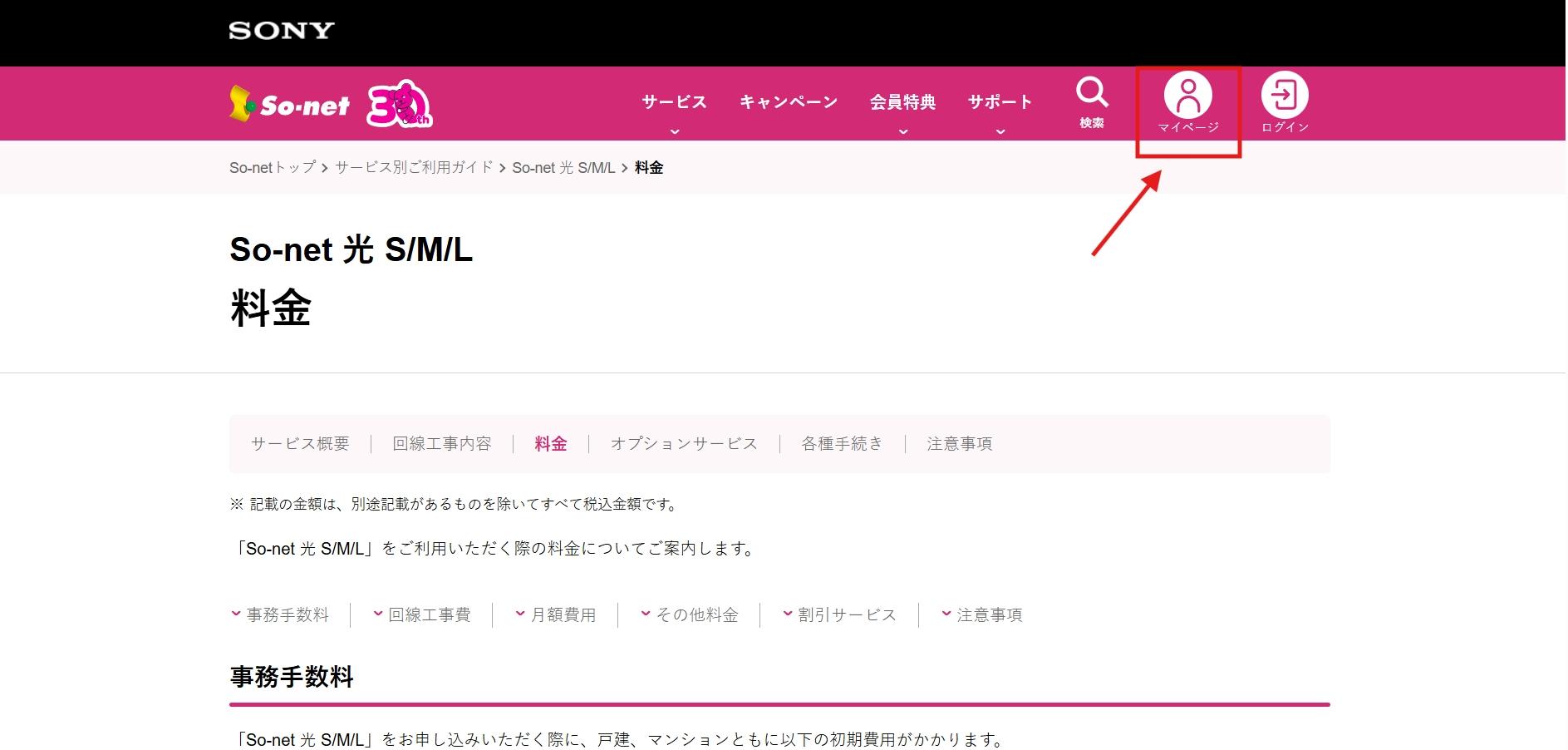
Look at the top right corner and click the person icon:
マイページ (My Page)
Select Billing / Payment
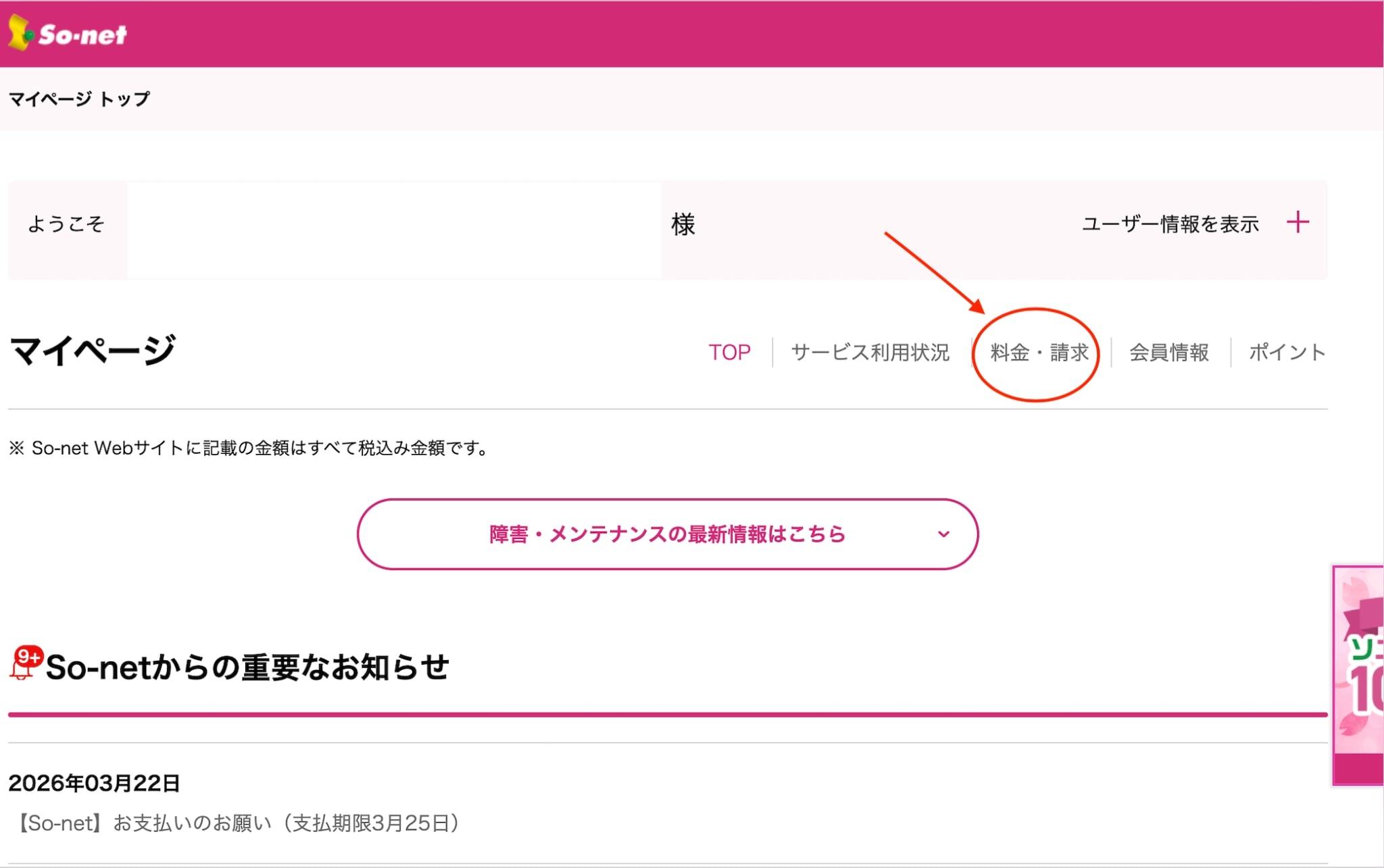
On the My Page screen, find the menu in the middle of the screen.
Click the following option:
料金・請求 (Billing / Payment)
Register Payment Method
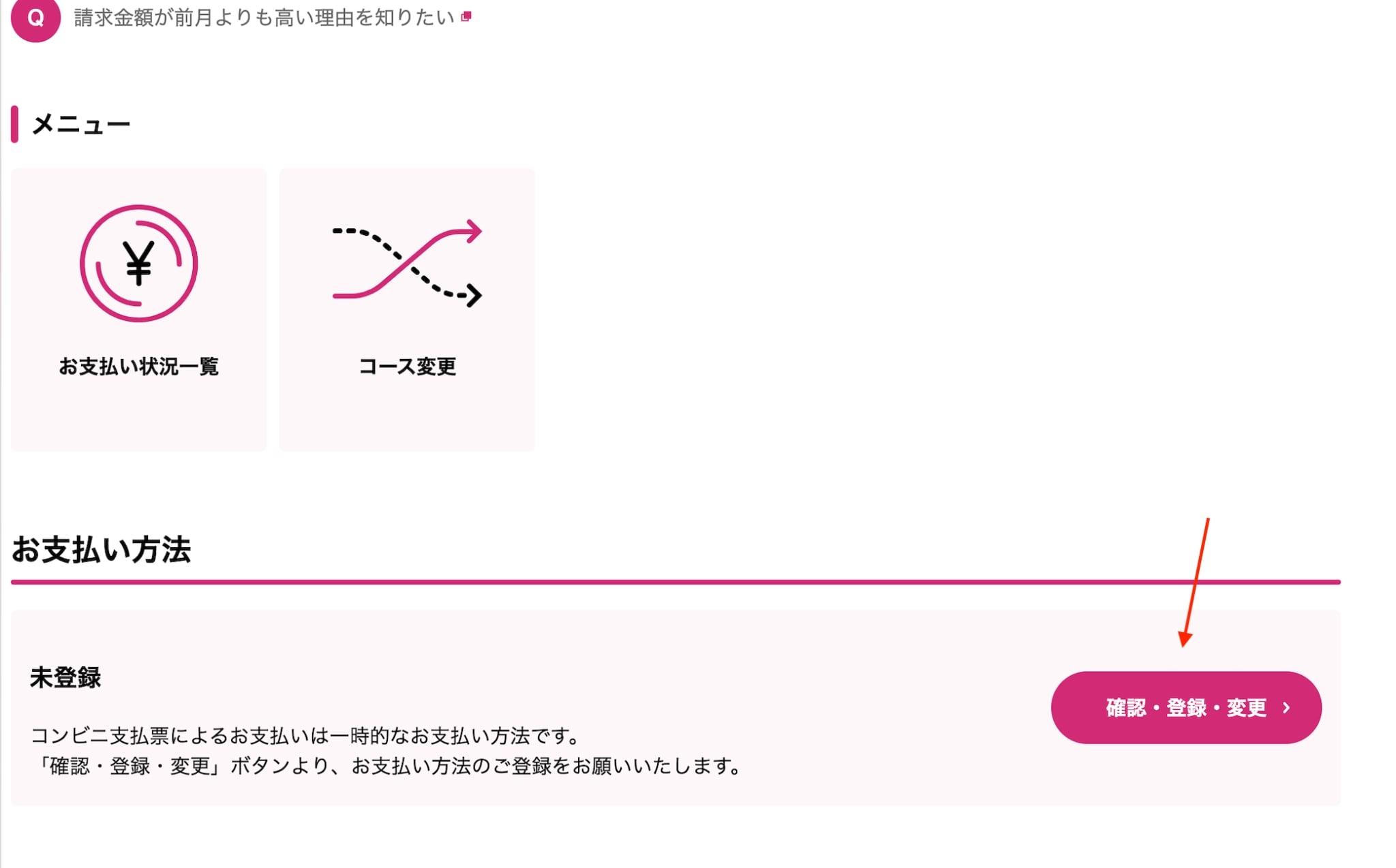
Scroll down and find the お支払い方法 (Payment Method) section.
The current status is "Unregistered" (未登録). Click the pink button:
確認・登録・変更 >
(Confirm / Register / Change)
Choose Automatic Direct Debit
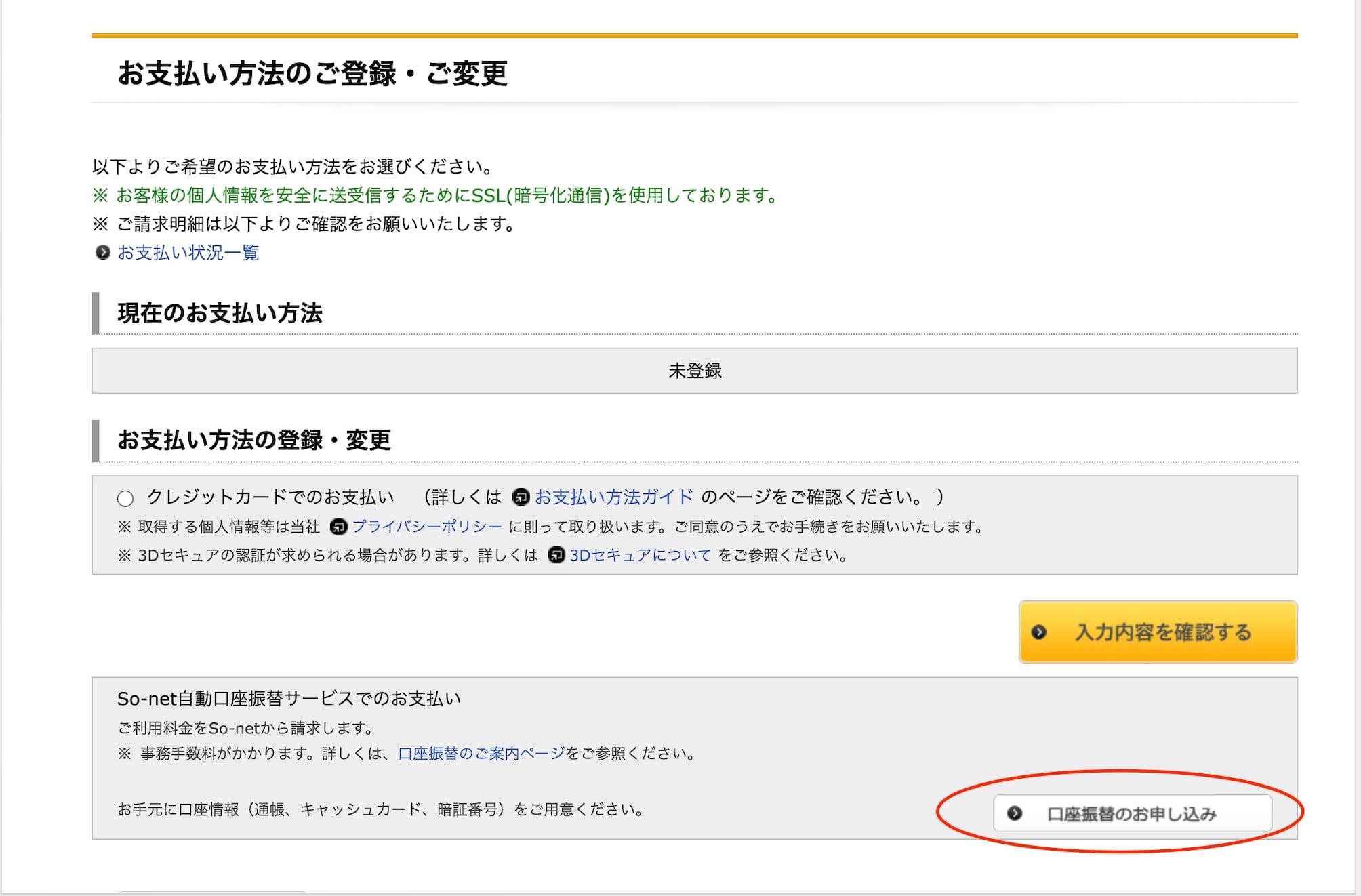
The system will display payment methods. To link a bank account, click the white button:
口座振替のお申し込み
(Apply for Automatic Direct Debit)
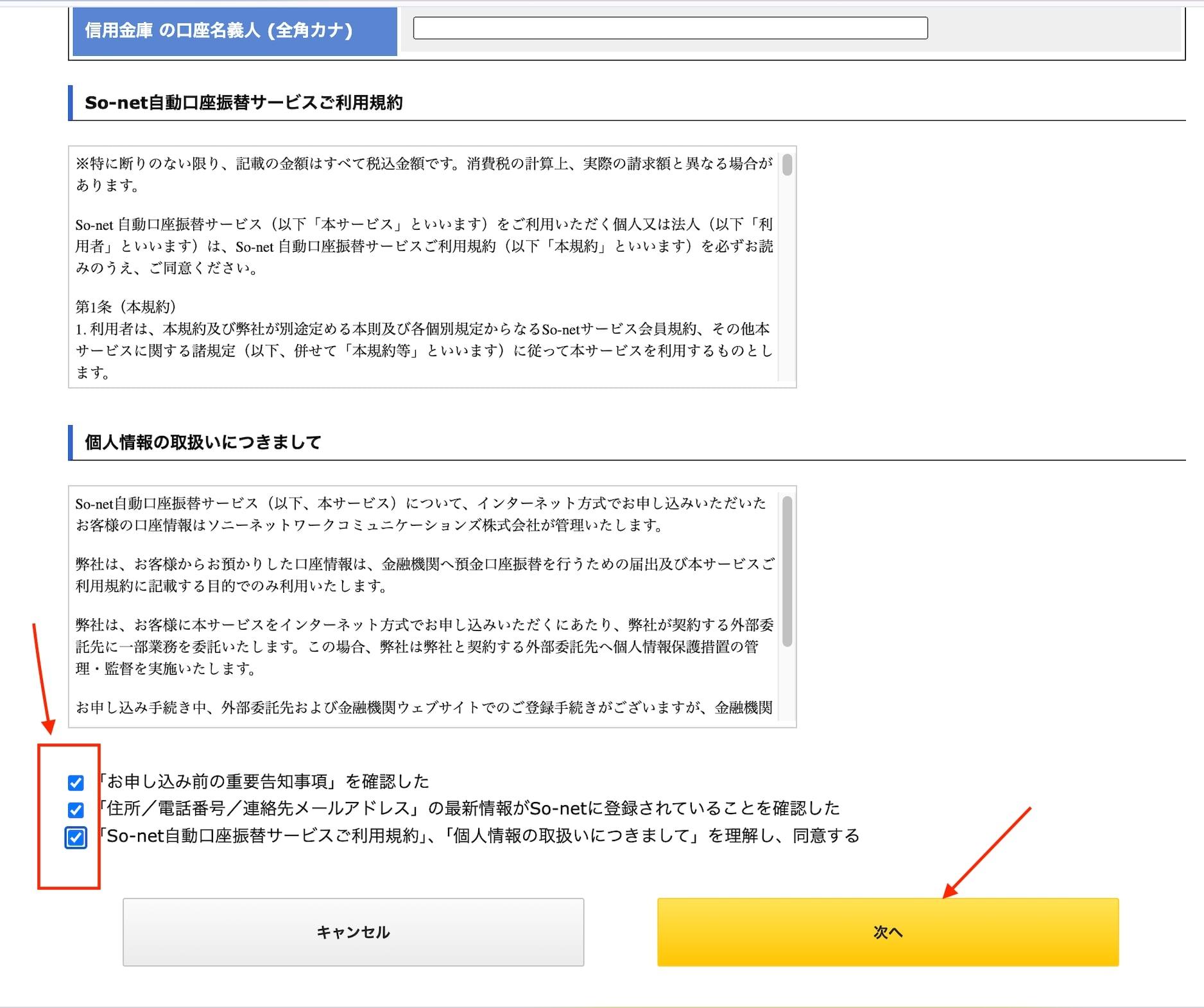
Agree to the Terms
Security terms and information will be displayed.
- Check all 3 boxes below to agree.
- Then click the yellow button 次へ (Next).
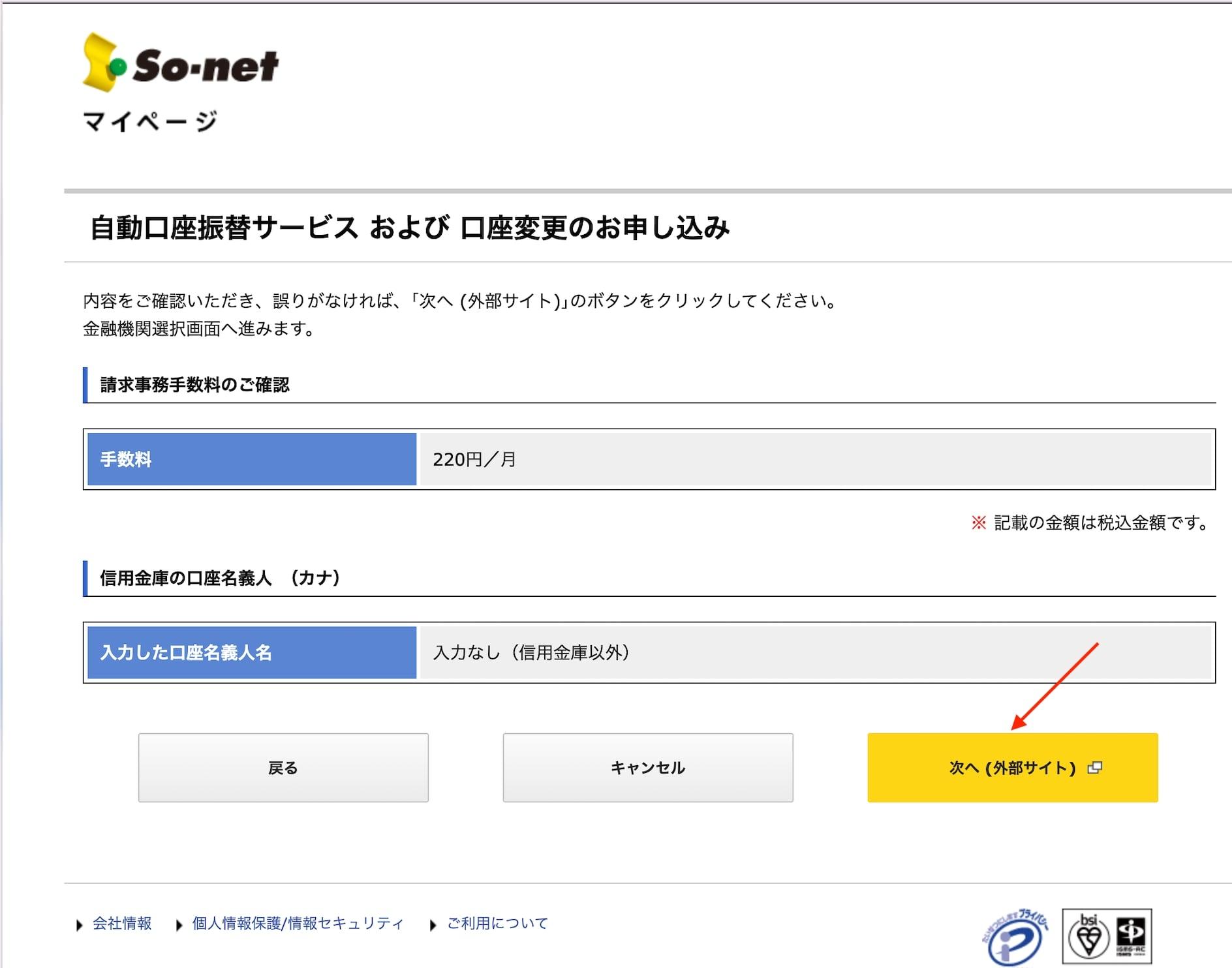
Confirm redirect to Bank Page
You will see a confirmation screen for handling fees (usually 220 Yen/month depending on the bank).
Click the yellow button to proceed to the bank's system:
次へ (外部サイト)
(Next - Go to external site)
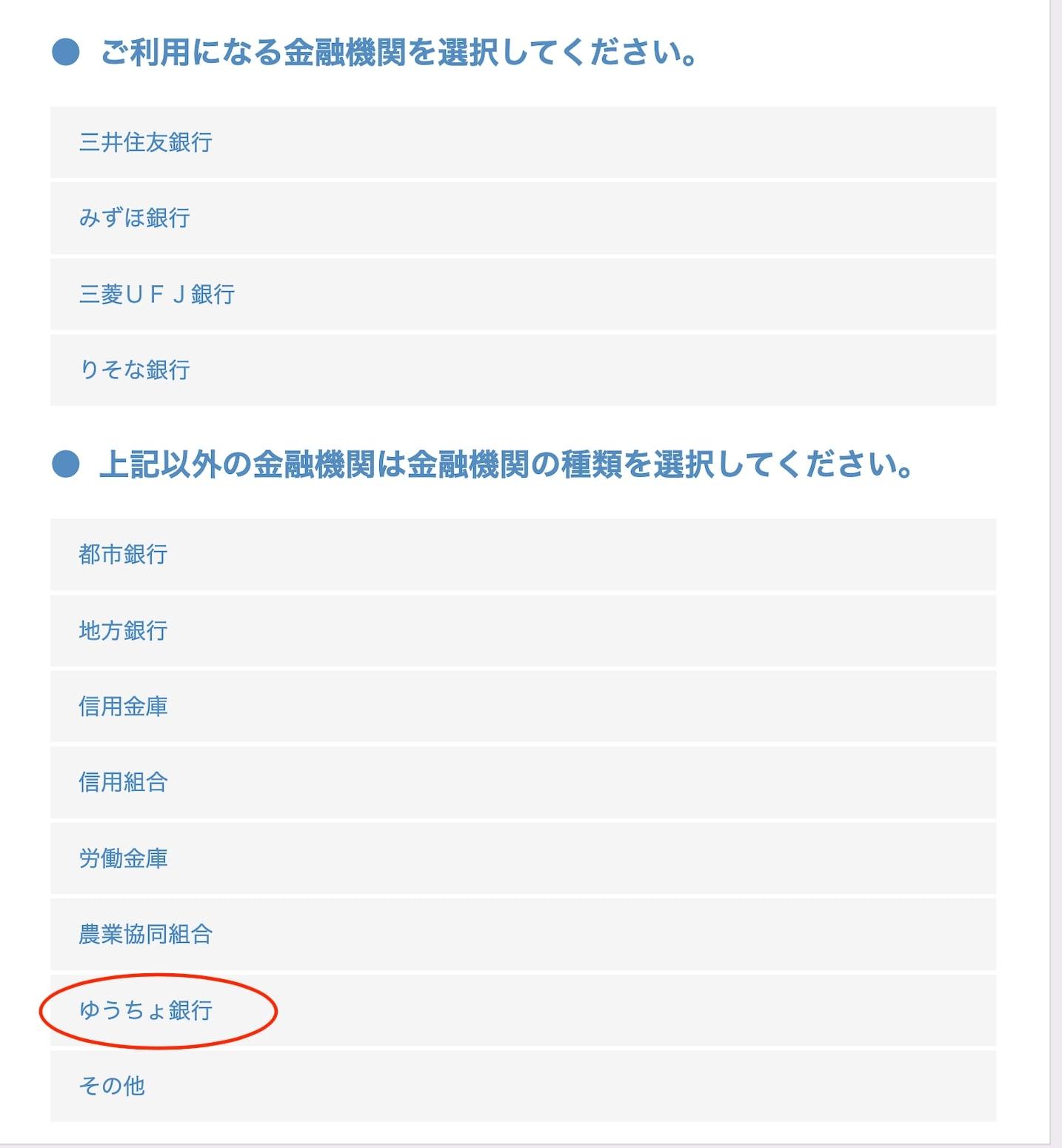
Select Your Bank
A list of supported banks will appear. Find and select the bank you are using.
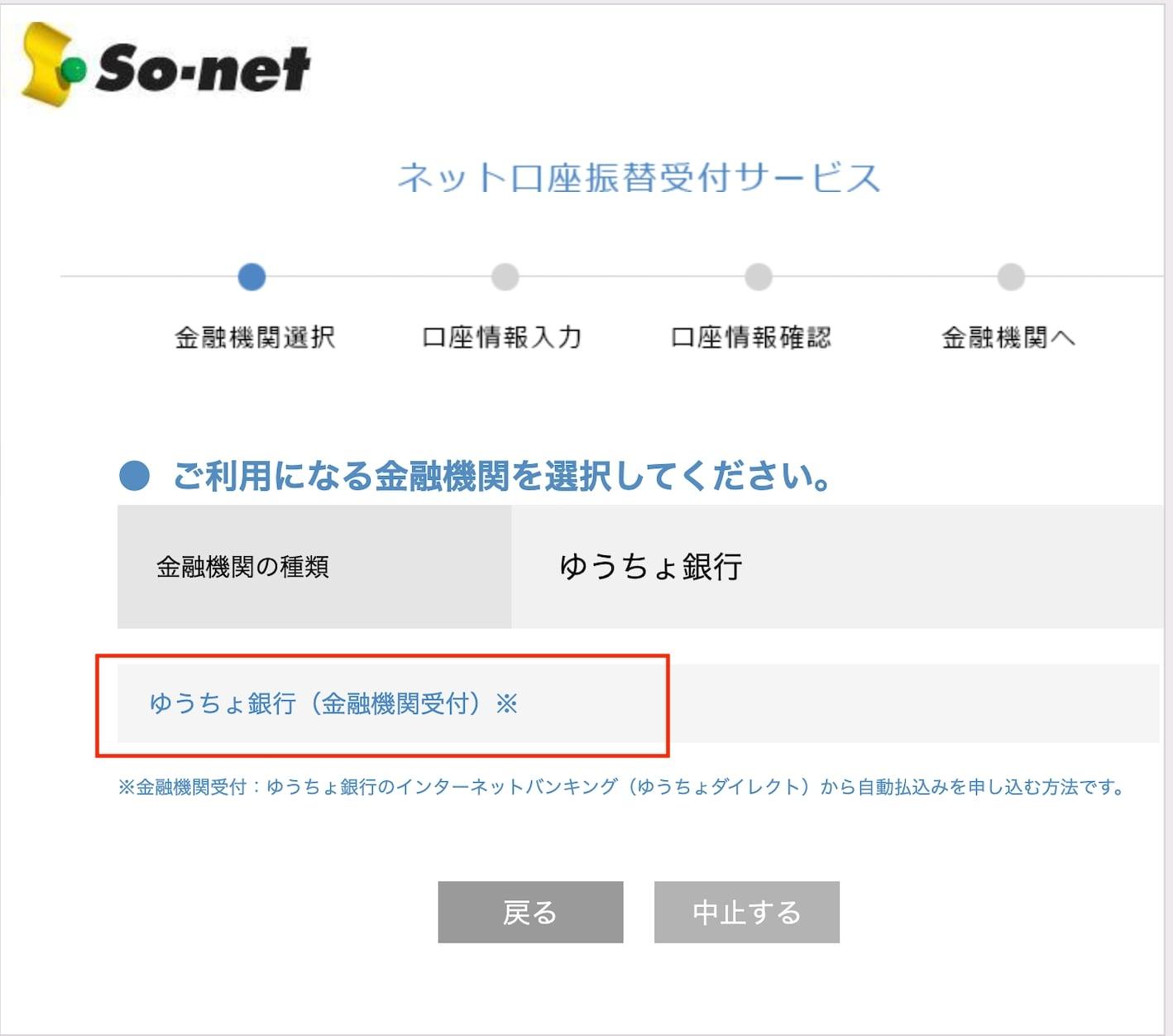
Confirm Yucho Bank
The system will show the bank name you selected again (Yucho Bank in this example).
Click the red-bordered text as shown in the image:
ゆうちょ銀行(金融機関受付)※
Proceed to the Bank's Website
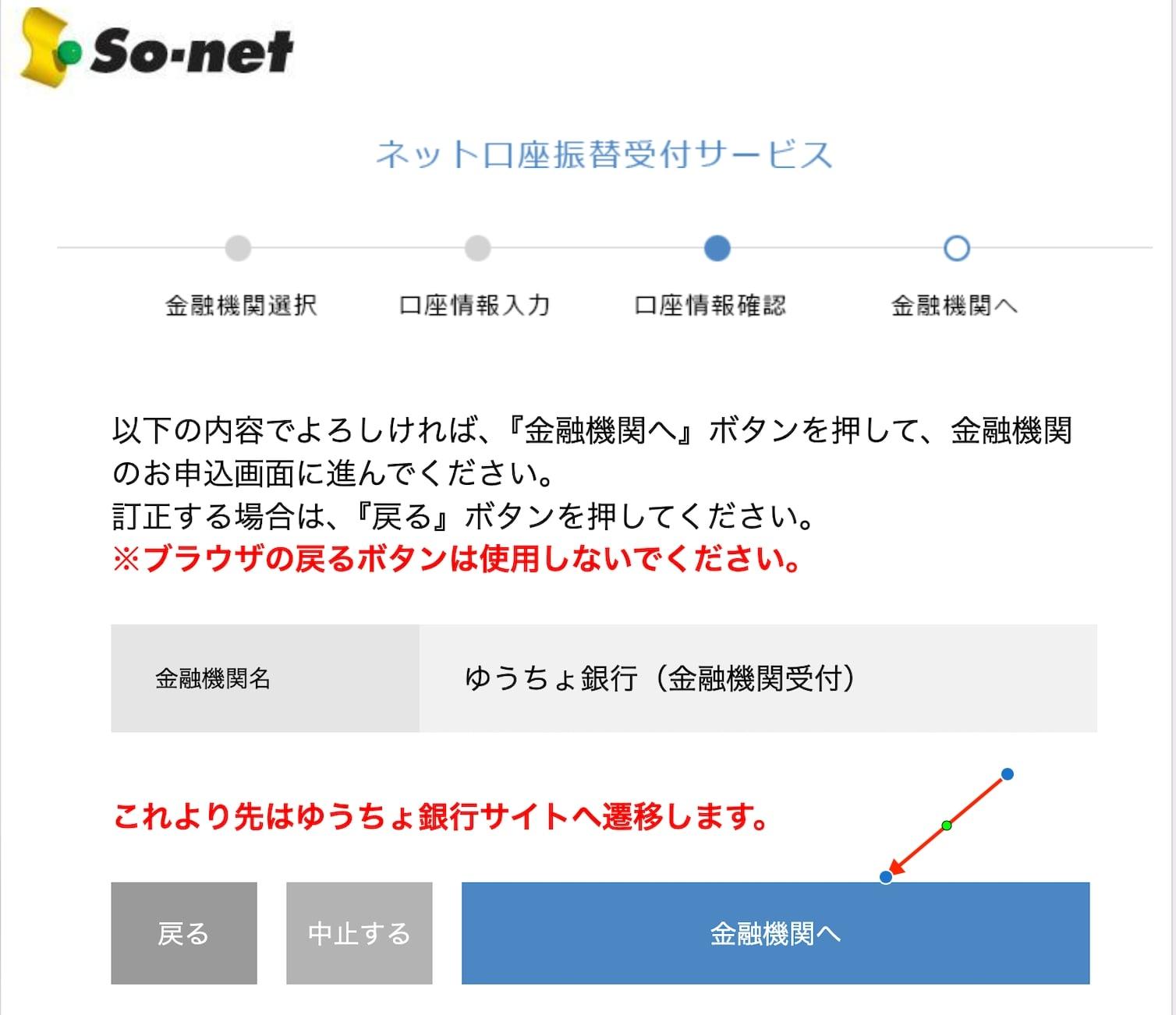
A warning screen will appear before transferring to the bank's system.
Click the blue button:
金融機関へ
(Go to Financial Institution)
Get Customer Number from the App
To log into the Yucho web system, you need your Customer Number.
- Open the Yucho Passbook (ゆうちょ通帳) app (green notebook icon) on your phone.
- Log into the app and find the section displaying お客さま番号 (Customer Number).
- Memorize or copy this number to use in the next step.
Enter Customer Number (Yucho Direct)
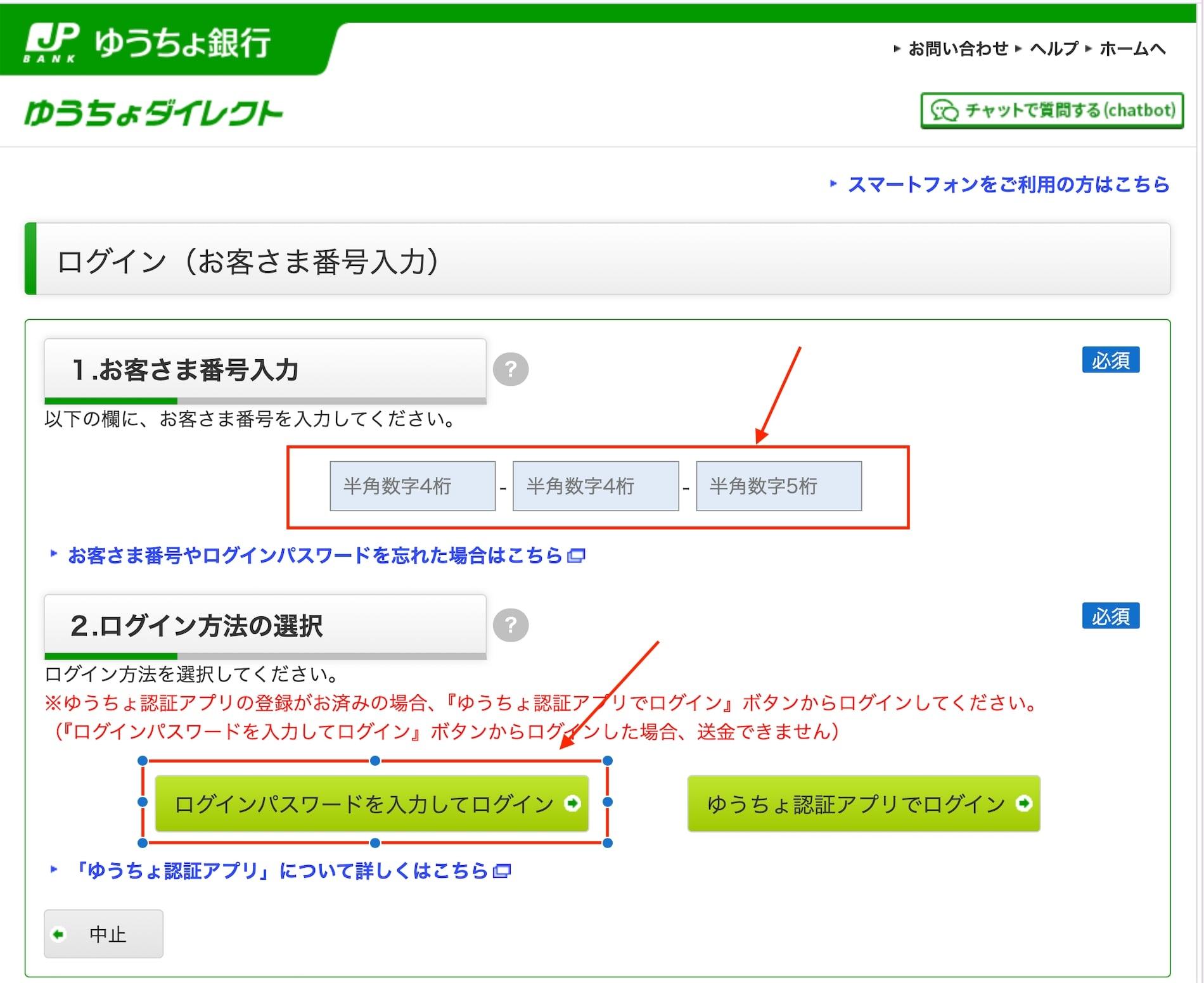
Go back to the opened Yucho Bank webpage.
- Item 1: Enter the Customer Number (お客さま番号) obtained in Step 14 into the 3 boxes.
(* Note: This customer number can be found in the Yucho Bank app on your phone.) - Item 2: Choose the login method by clicking the green button on the left:
ログインパスワードを入力してログイン
(Login with password)
Enter Login Password
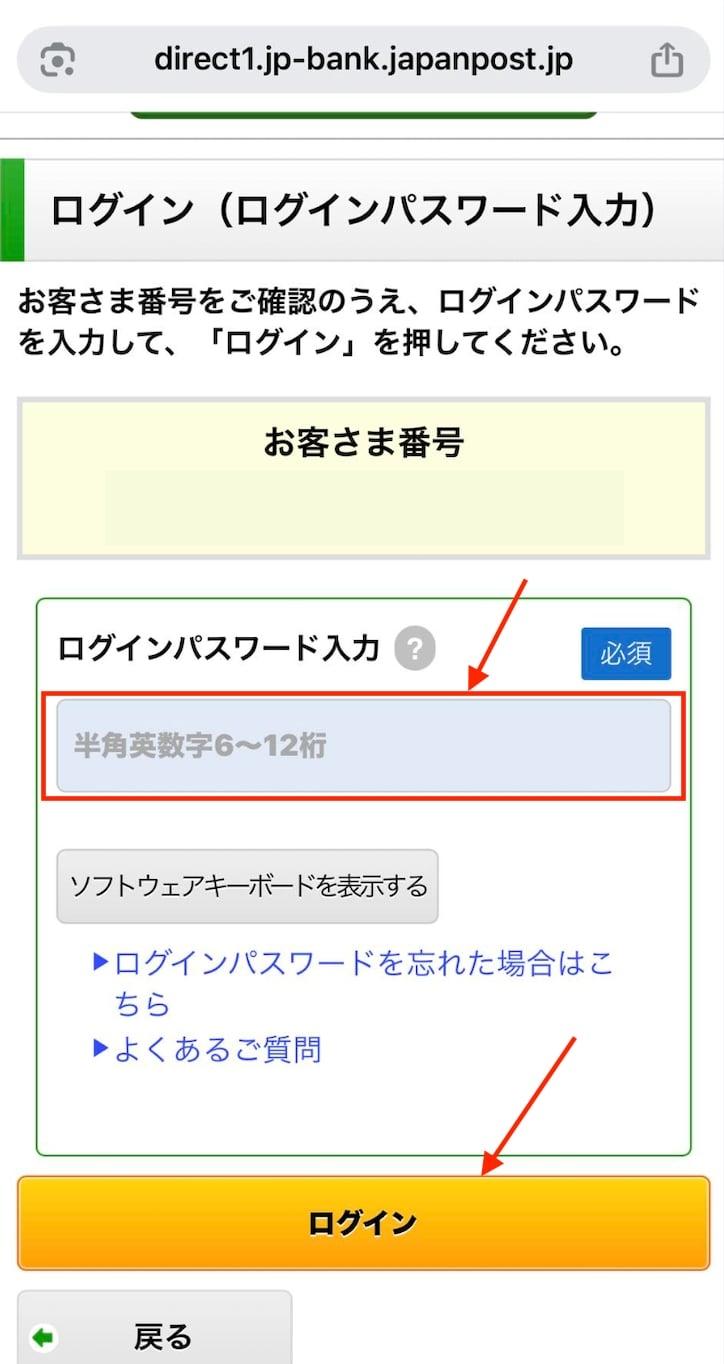
The password request screen will appear.
- In the ログインパスワード入力 (Enter Login Password) field, enter your Yucho Direct password (6 to 12 characters).
- Then click the yellow button below: ログイン (Login).
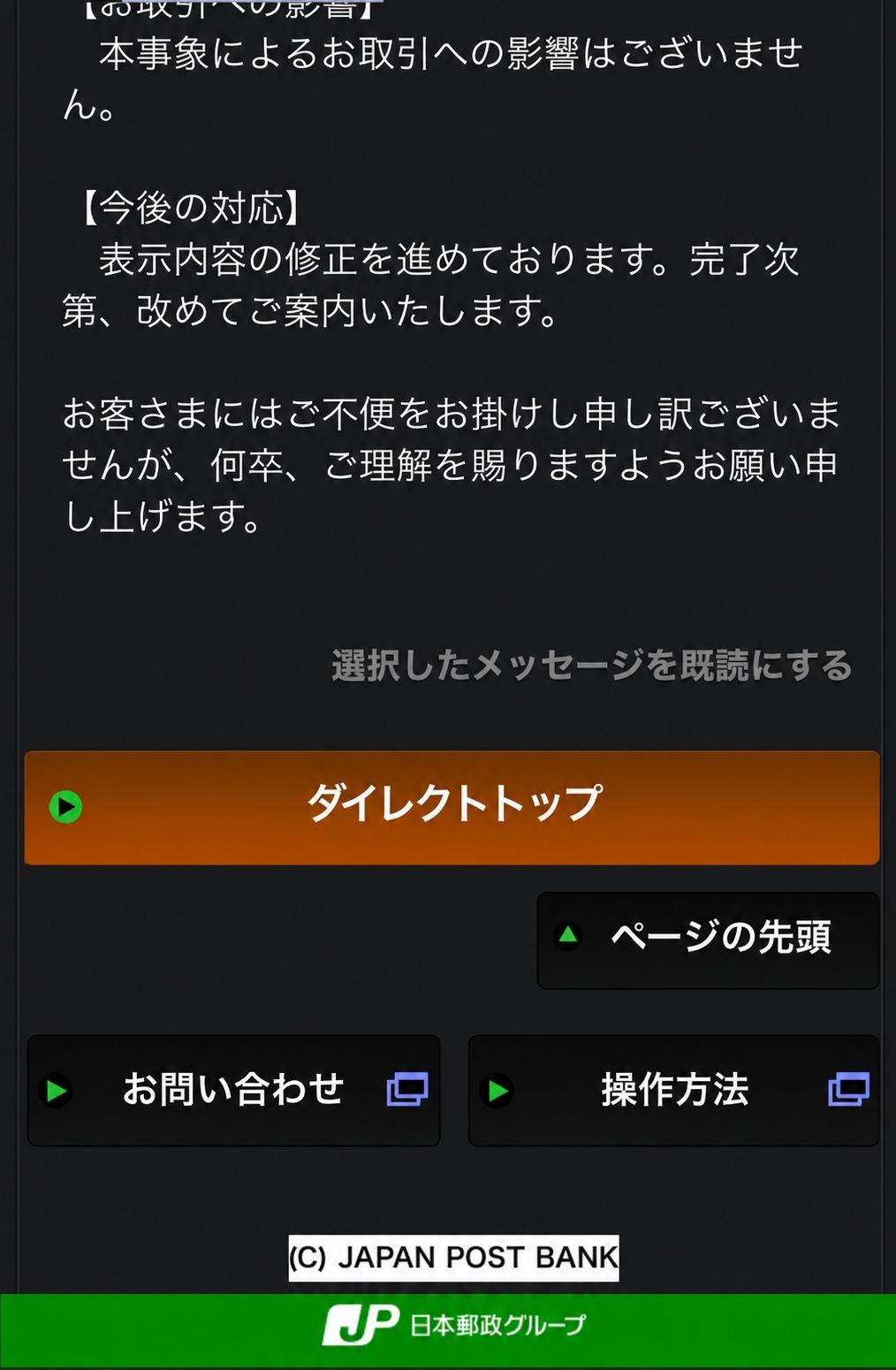
Confirm Return to So-net
On this page, click the orange button with the following text:
▶ ダイレクトトップ (Direct Top)
This action will return you to the So-net website to complete the process.
Authenticate via Yucho App
For security, Yucho requires you to authenticate your identity through the Yucho Authentication (ゆうちょ認証) app on your mobile phone.
Open this app, check the confirmation request notification, and tap "Approve/Agree".
Congratulations on completing your setup!
Once confirmed by the bank, the service fee will be automatically deducted from your account monthly.