SoftBank Payment Registration Guide
HGnet SoftBank

Step-by-Step Guide

Payment Method
Registration Guide

Follow the detailed steps below to complete linking your bank account (Yucho) to your SoftBank account.

Estimated time: 5 minutes
1

Log into the system

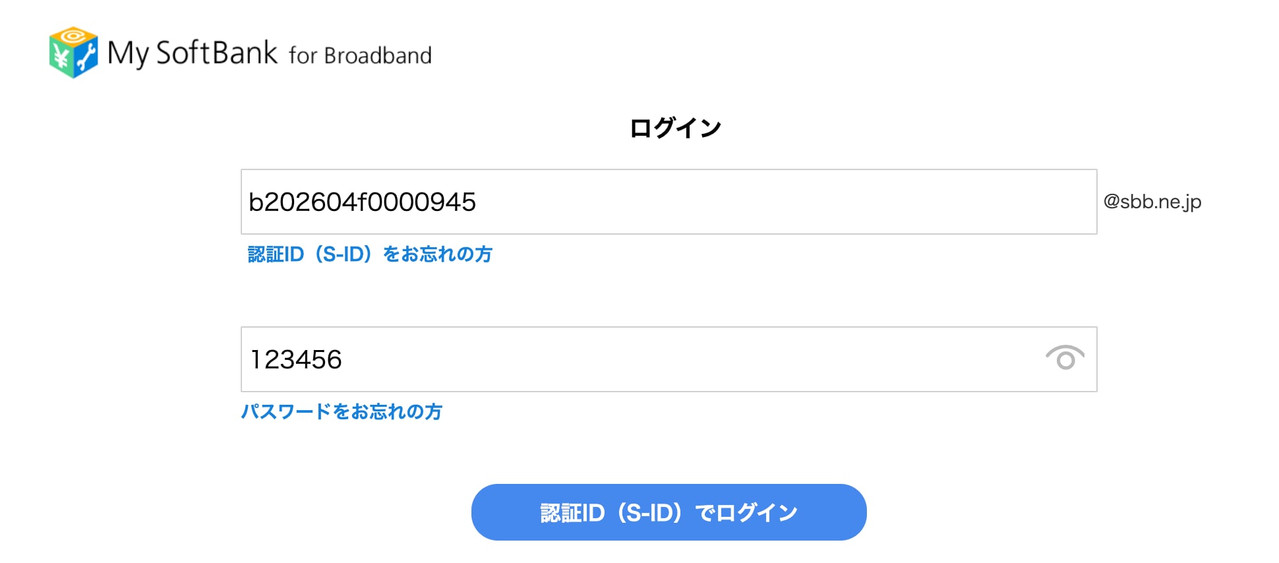
On the My SoftBank login screen, enter your information:

1. Enter your ID (S-ID) in the first box.
2. Enter your Password in the second box.
3. Click the blue button 「認証ID(S-ID)でログイン」 to continue.
Step 1
2

Go to procedures

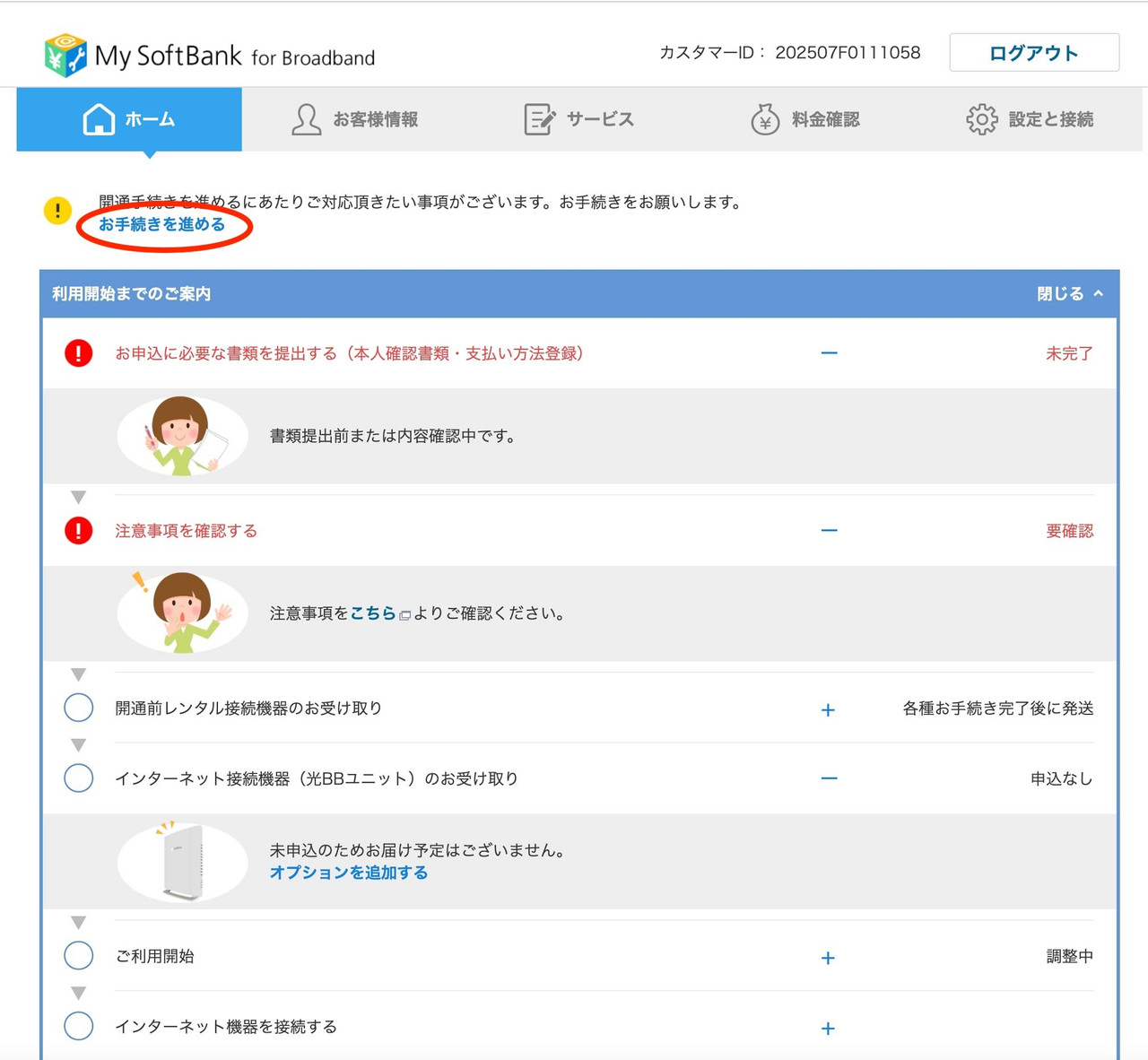
On the My SoftBank home screen, look for the yellow notice at the top and click the button circled in red:
「お手続きを進める」 (Proceed with the procedure).

Step 2
3

Start registration

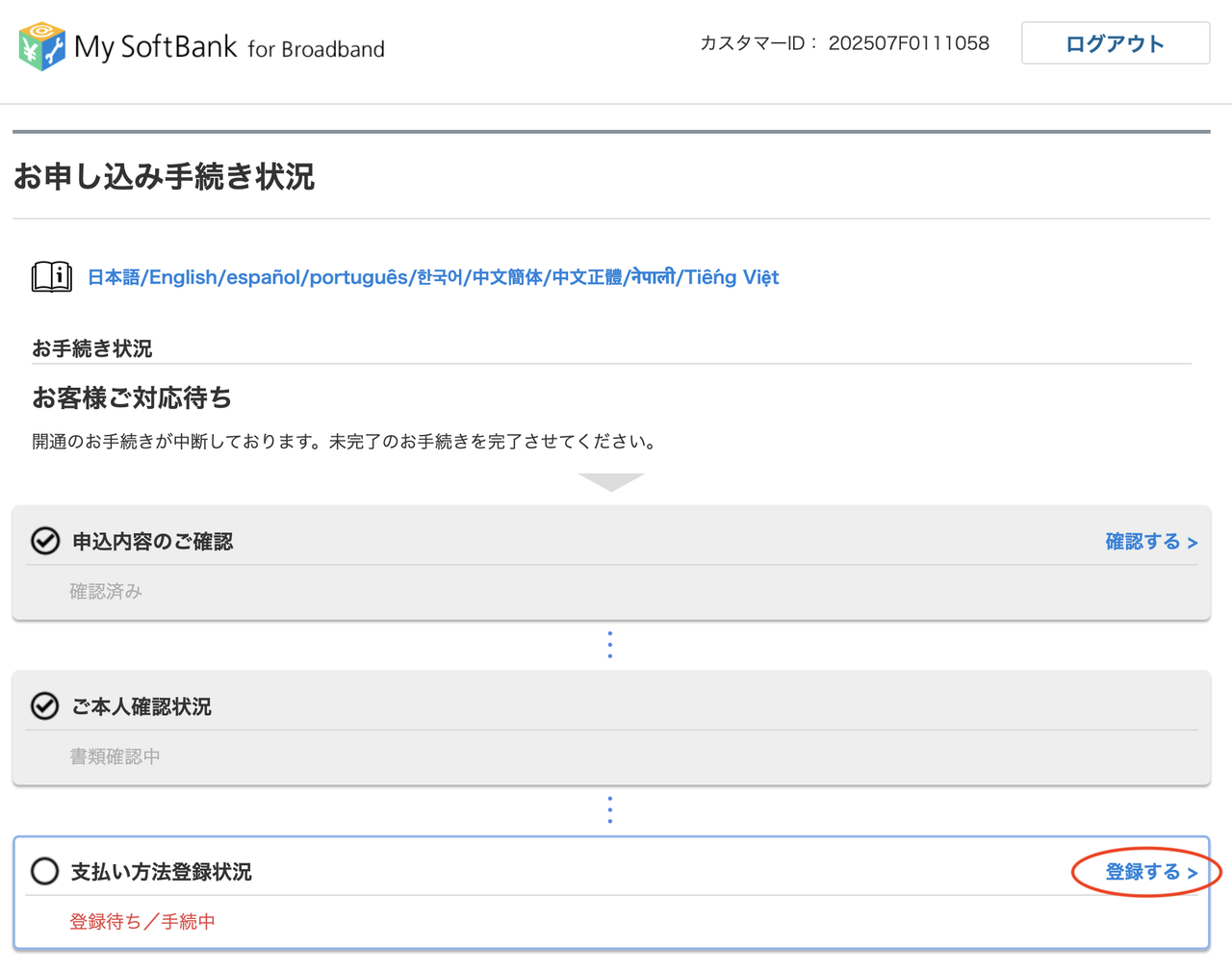
Scroll down to the 「支払い方法登録状況」 (Payment method registration status) section, and click the right button:
「登録する >」 (Register).

Step 3
4

Confirm agreement

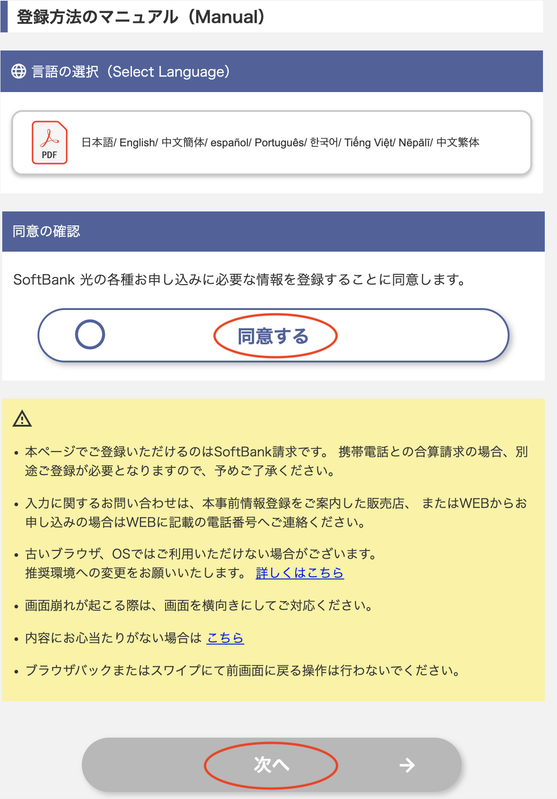
On the Terms (Manual) screen:
1. Check the circle 「同意する」 (Agree).
2. Scroll to the bottom of the page and click the 「次へ ➔」 (Next) button.

Step 4
5

Continue the procedure

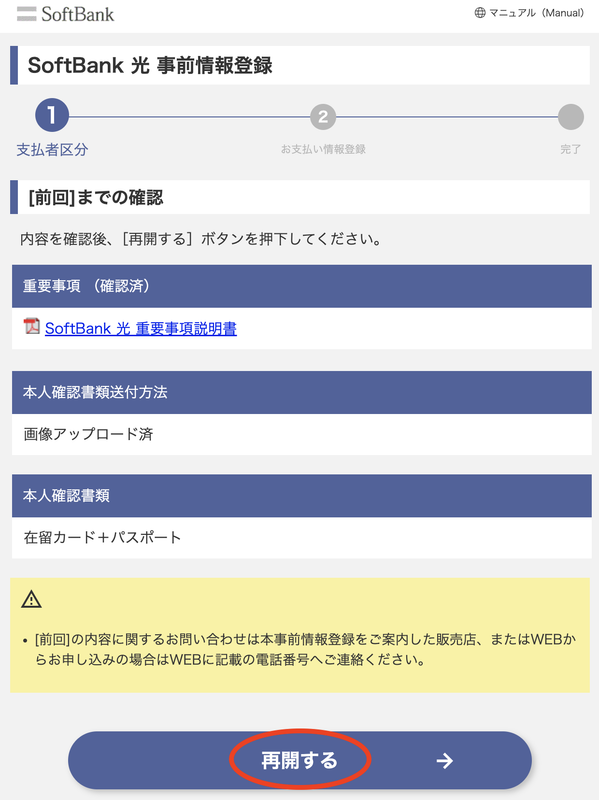
On the information verification screen, scroll to the bottom and click the blue button:
「再開する ➔」 (Resume).

Step 5
6

Select the payer

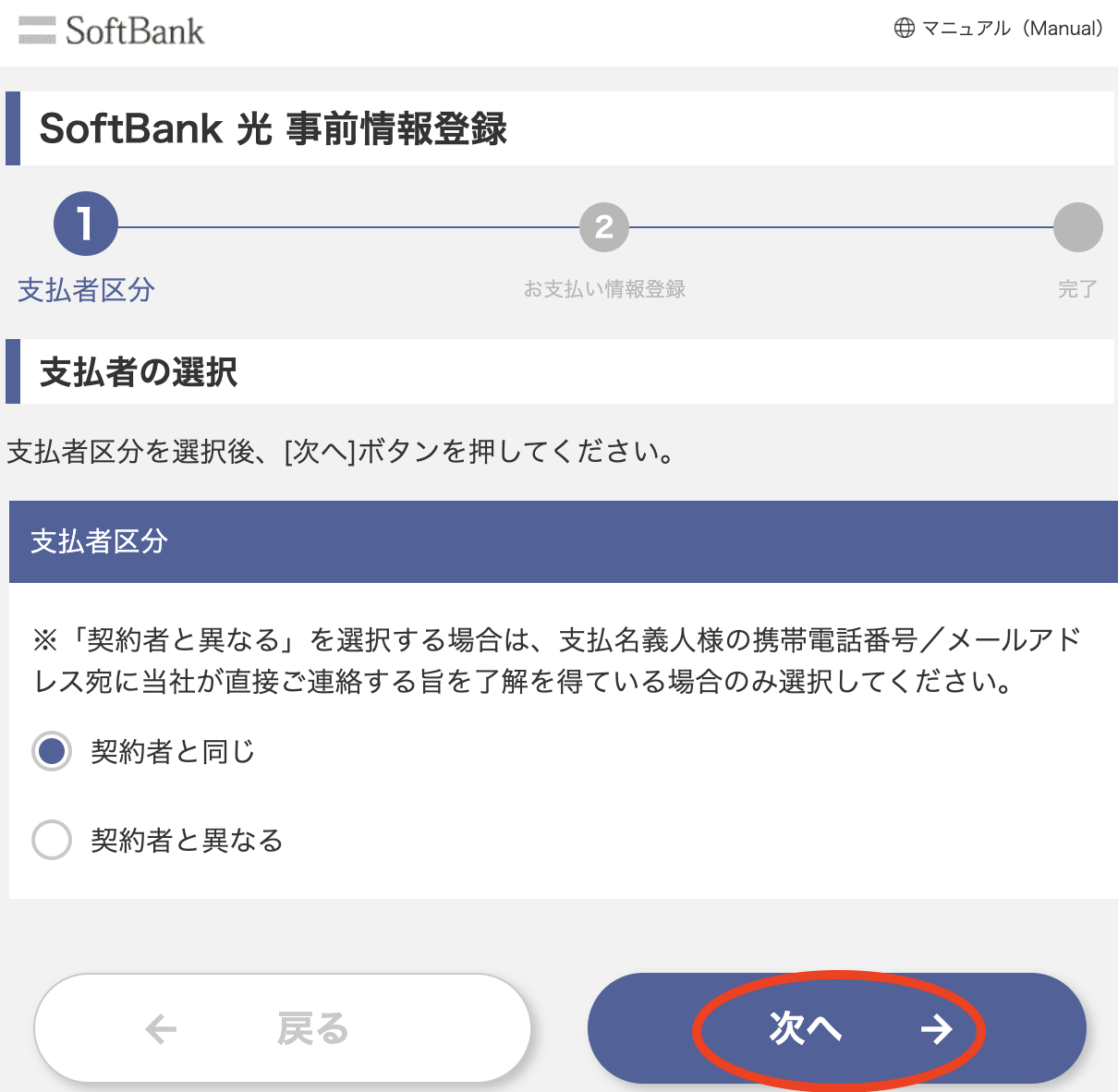
In the 「支払者の選択」 section:
Make sure the first option 「契約者と同じ」 (Same as contract holder) is selected and click:
「次へ ➔」 (Next).

Step 6
7

Enter personal information

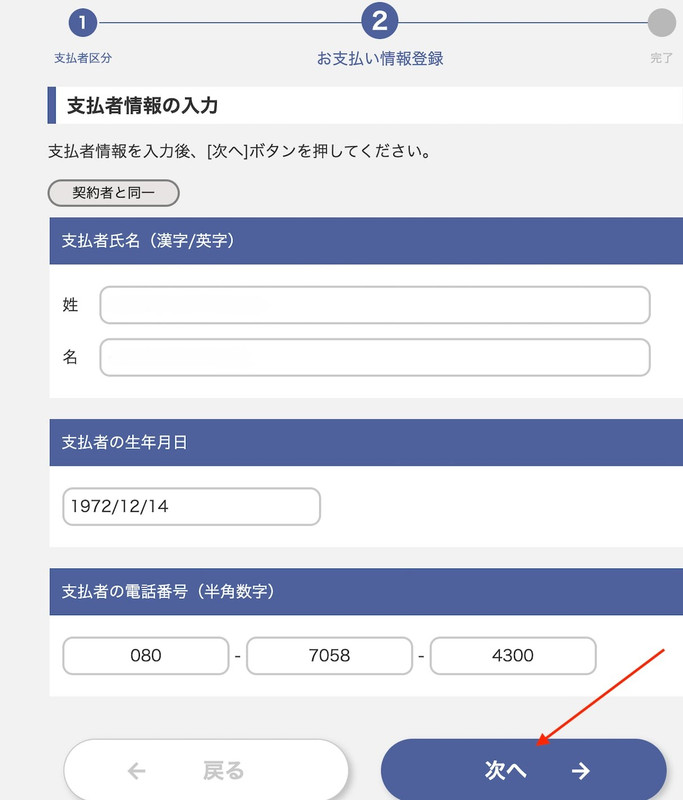
On the 「支払者情報の入力」 (Enter payer information) screen:
Enter your Last Name and First Name, Date of Birth (Format: Year/Month/Day), and Contact Phone Number.
Then, click the blue button 「次へ ➔」 (Next).

Step 7
8

Enter address information

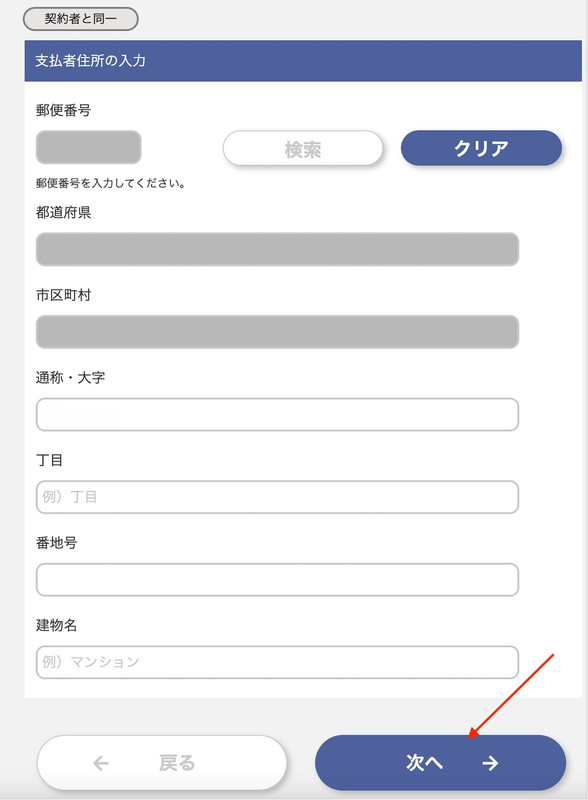
On the 「支払者住所の入力」 (Enter payer address) screen:
Correctly enter your address including Postal Code (Zip Code), Prefecture, City/Town, Street Name, and House Number.
Then, click the 「次へ ➔」 (Next) button.

Step 8
9

Confirm information

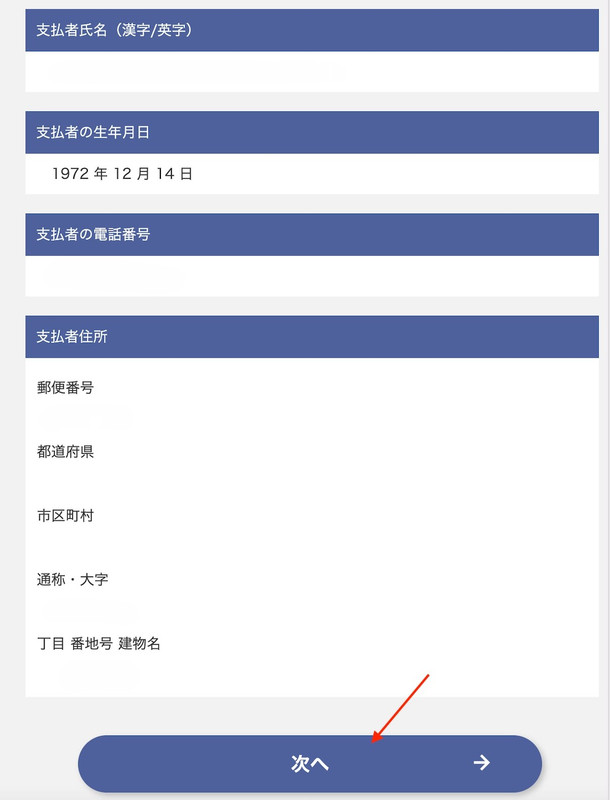
The system will display all the personal and address information you just entered.
Check if everything is correct and click the blue 「次へ ➔」 (Next) button at the bottom.

Step 9
10

Select payment method

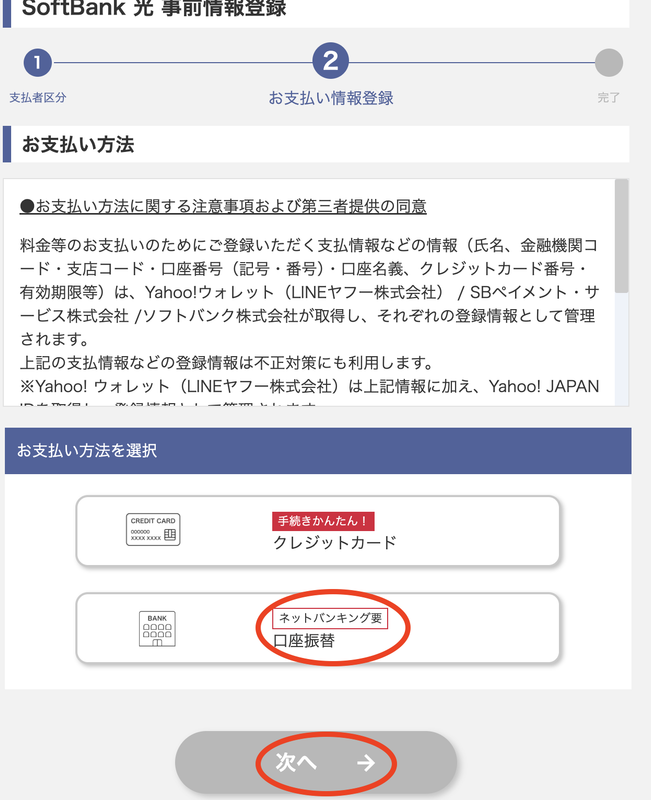
In the 「お支払い方法を選択」 section:
Select the box below with the bank icon 「口座振替」 (Automatic bank transfer/Direct debit), and then click:
「次へ ➔」 (Next).

Step 10
11

Select the bank

The screen will show a list of banks, click the button:
「ゆうちょ」 (Yucho Post Bank).

Step 11
Important
12

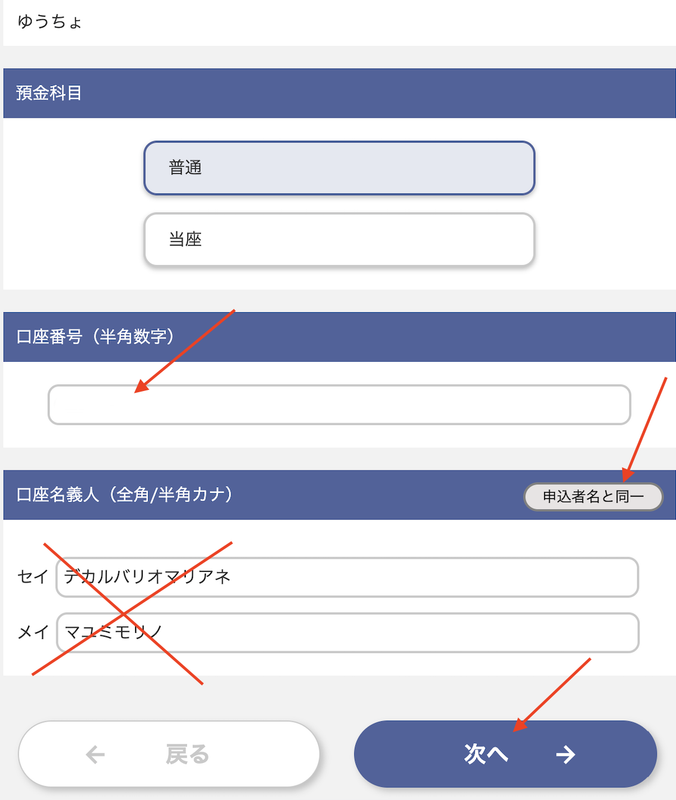
Fill in the information

  • Account number: Enter the numbers without spaces in the 口座番号 box.
  • Name attention: DO NOT manually type your name in the two boxes with the letters セイ/メイ.
  • Auto-fill: Click the gray 「申込者名と同一」 button for the system to automatically fill in your name.
  • After that, click 「次へ ➔」.
Step 12
13

Redirect to Yucho

Finally, click the long blue button:
「各金融機関のネットバンキングサイトへ」
(Go to the financial institution's internet banking site) to log into Yucho bank and finish linking.

Step 13
14

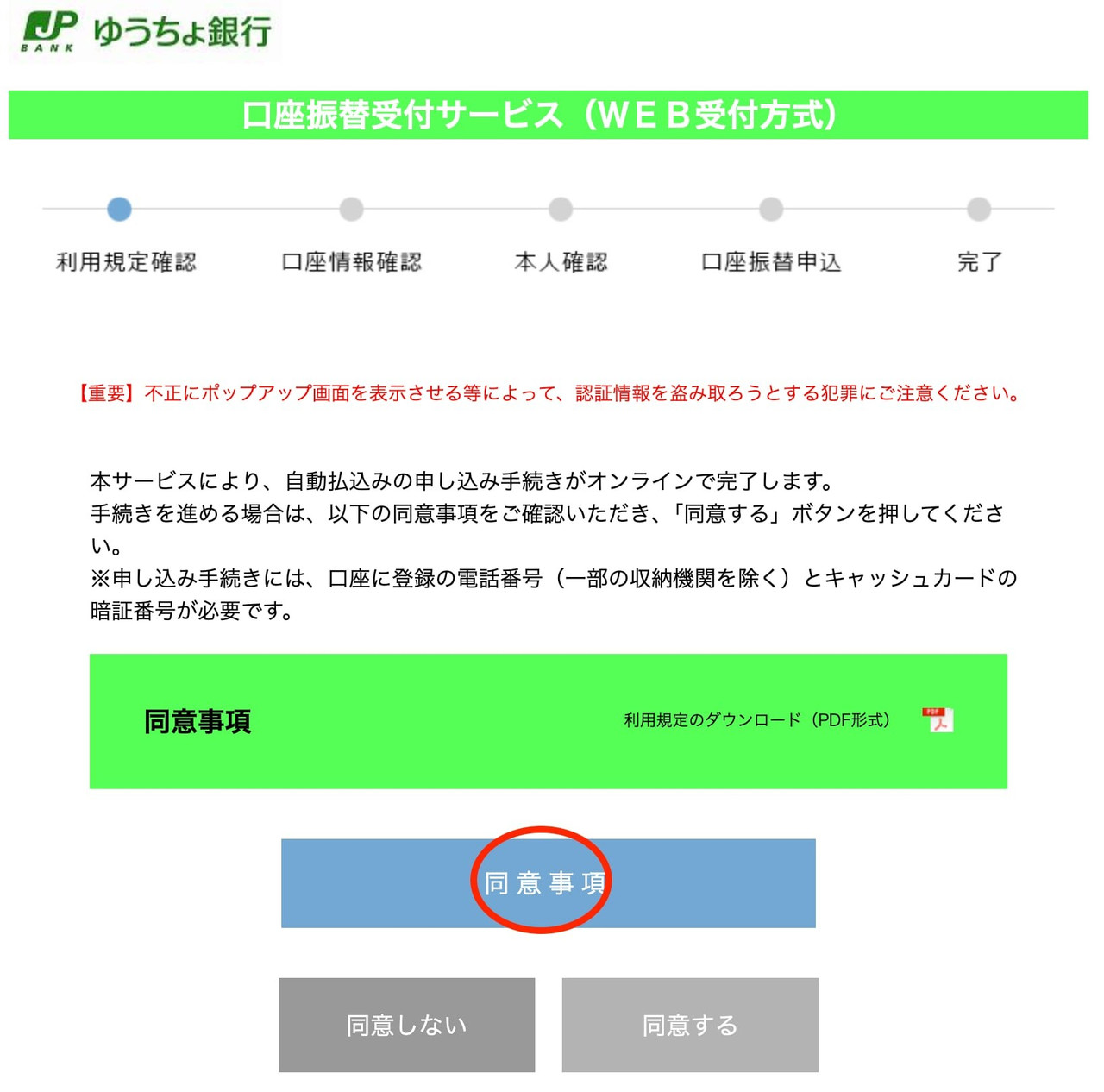
View Yucho terms

On the Yucho bank website, you need to read the terms before agreeing. Click the button:
「同意事項」 (Agreement details/Terms).

Step 14
15

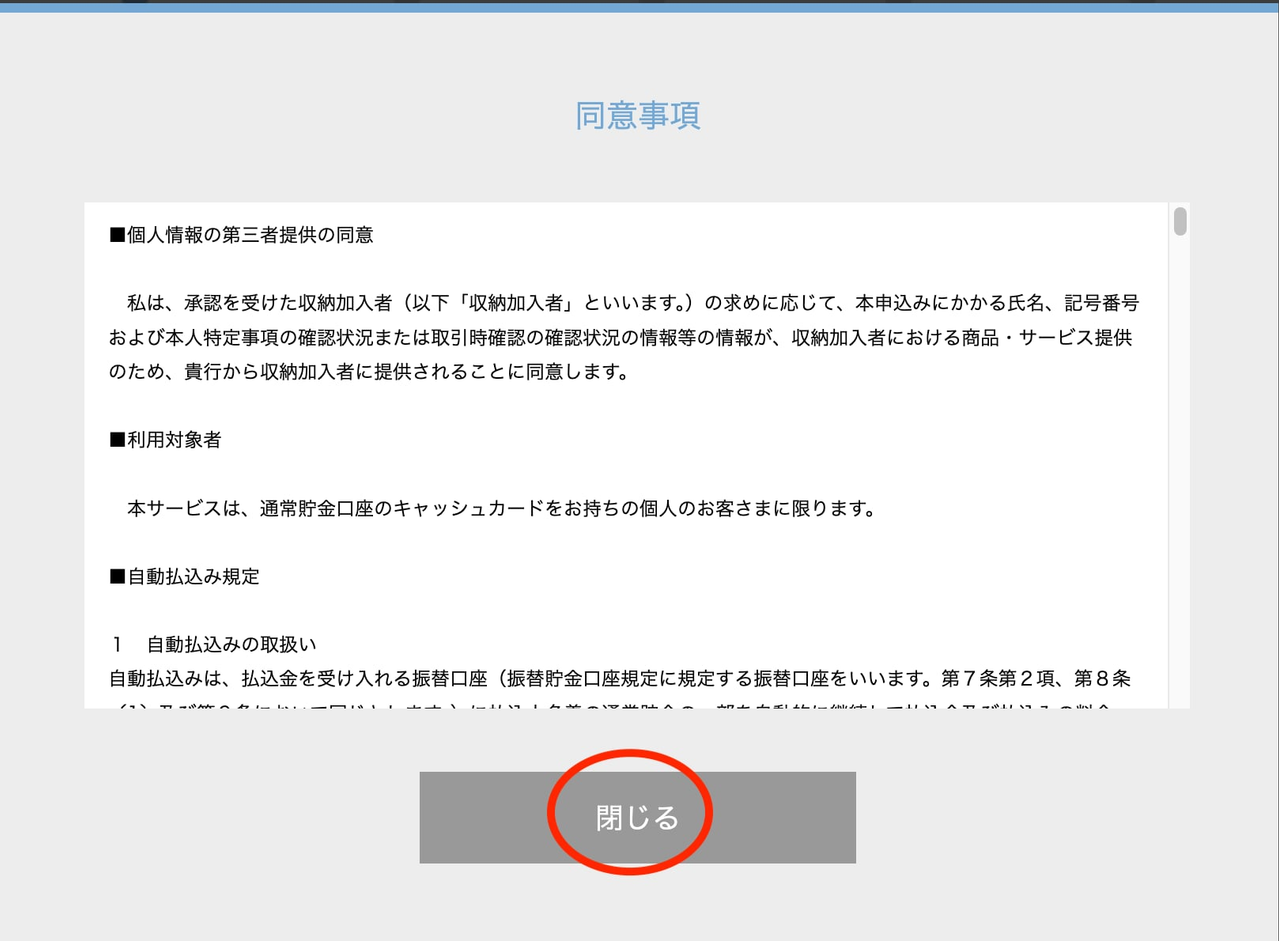
Close the terms window

The detailed terms window will appear on the screen. Scroll to the bottom and click the button:
「閉じる」 (Close).

Step 15
16

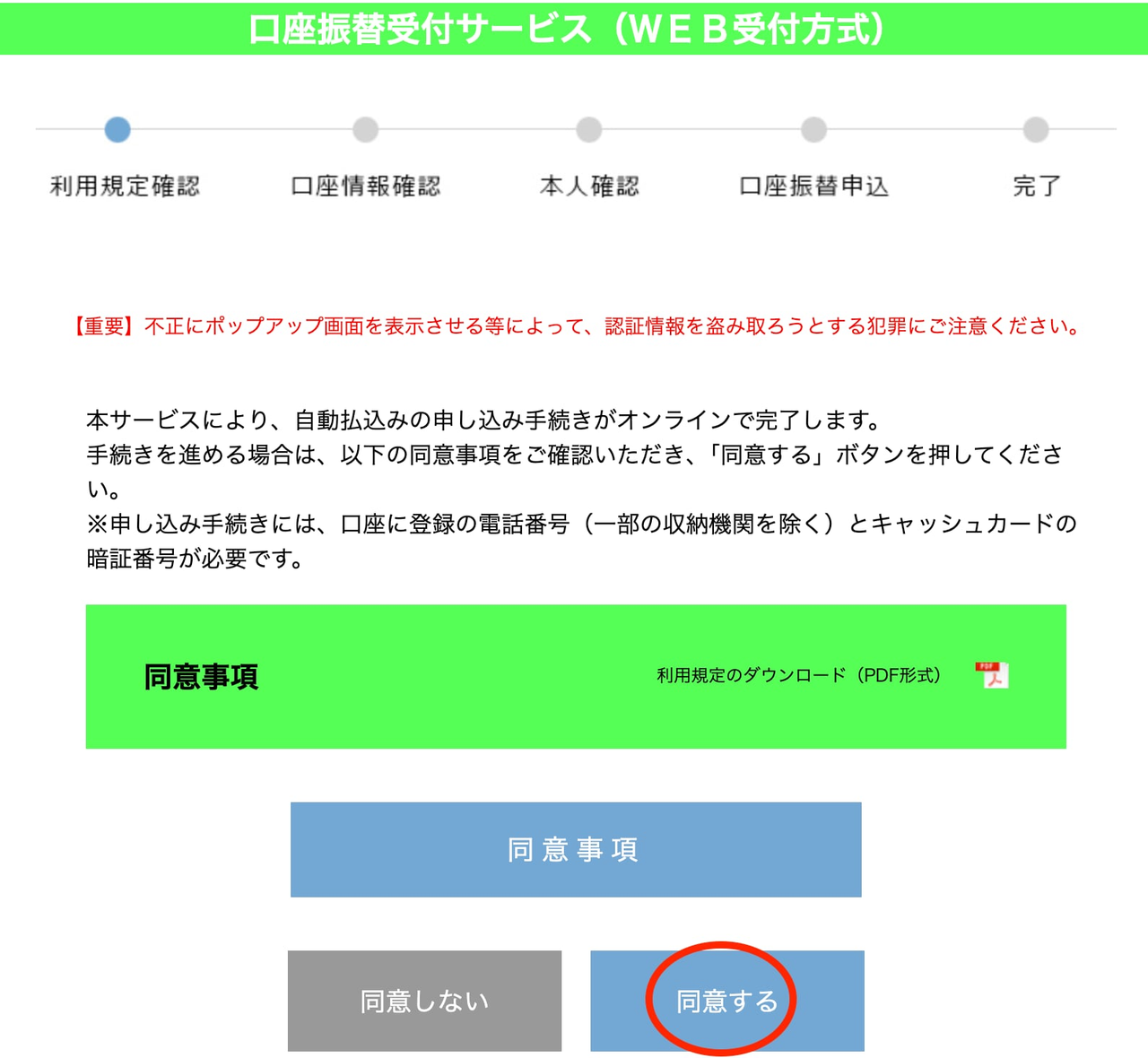
Confirm agreement

Now, the agree button will activate (turn blue). Click the button:
「同意する」 (Agree) on the right to continue.

Step 16
Note
17

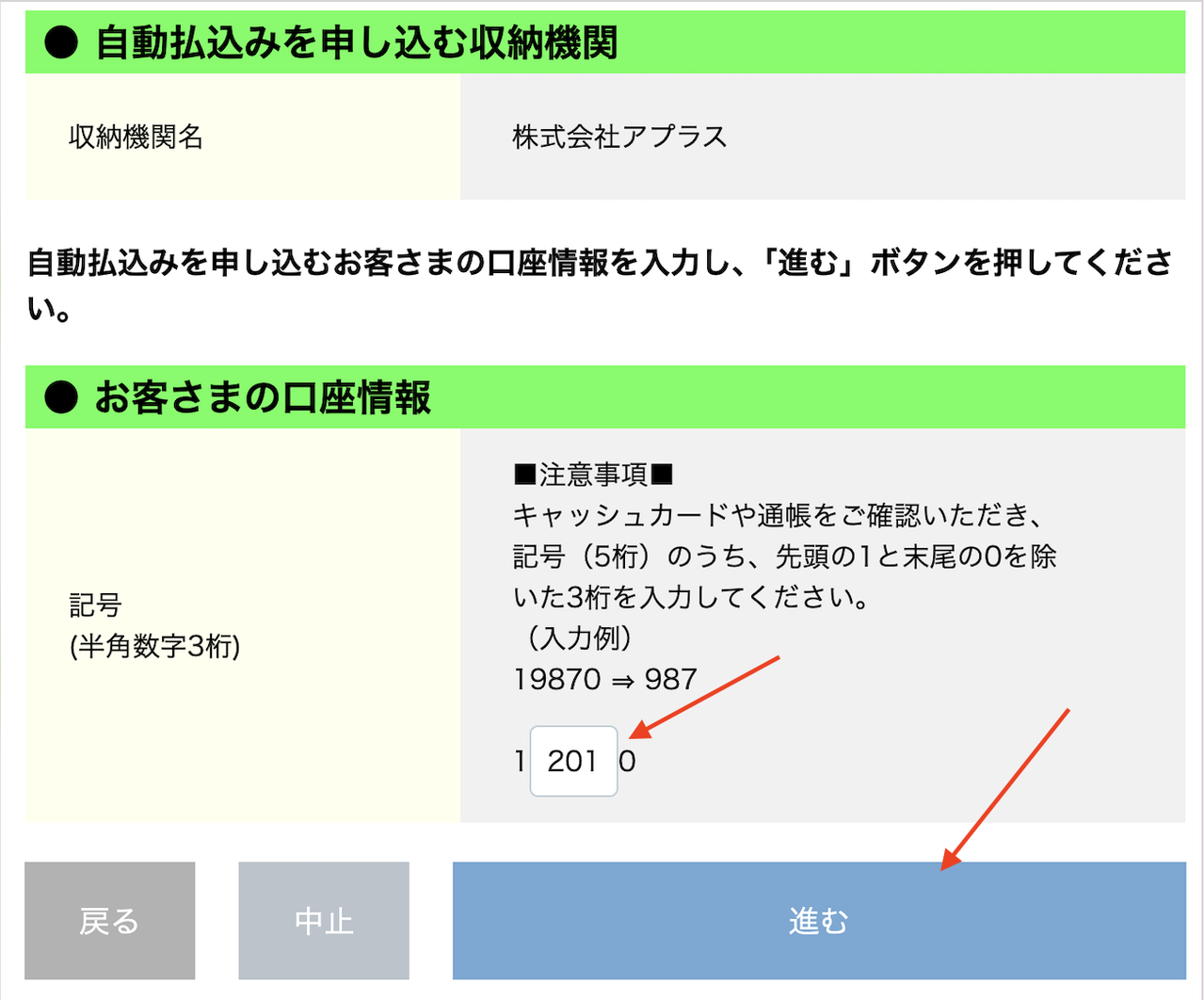
Enter the Kigo code (記号)

Enter the middle 3 numbers of the Kigo code (which has 5 digits) from your Yucho passbook/card.

  • Do not include the first number (number 1) and the last number (number 0).
  • Example: 12010, just type 201.
  • Then, click 「進む」 (Proceed).
Step 17
18

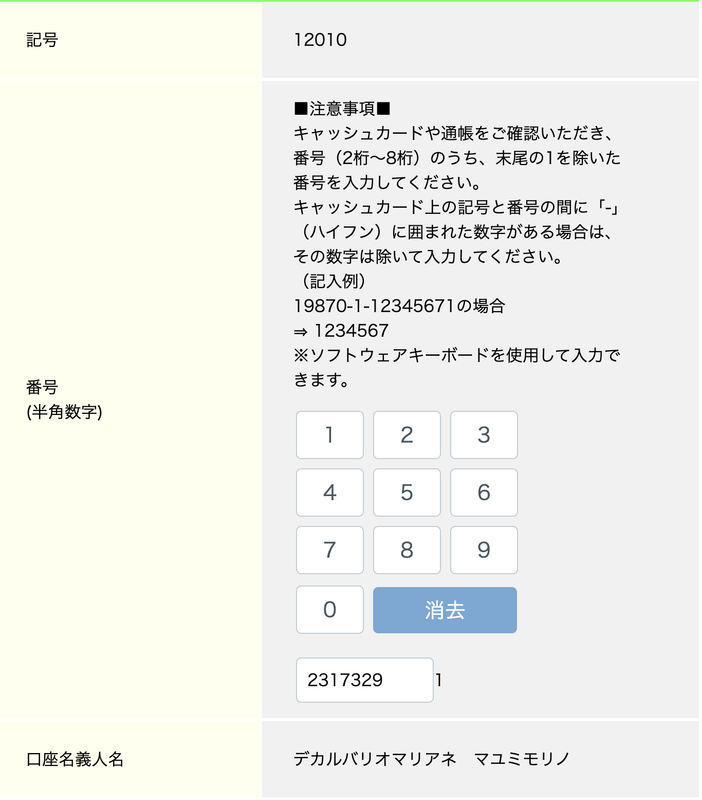
Enter the Bango account number

Use the virtual keyboard on the screen to type the 番号 (Bango) code - Your account number.

Note: Do not include the last digit (e.g., number 1), as it is already displayed outside the text box in the system.

Step 18
Extremely Important
19

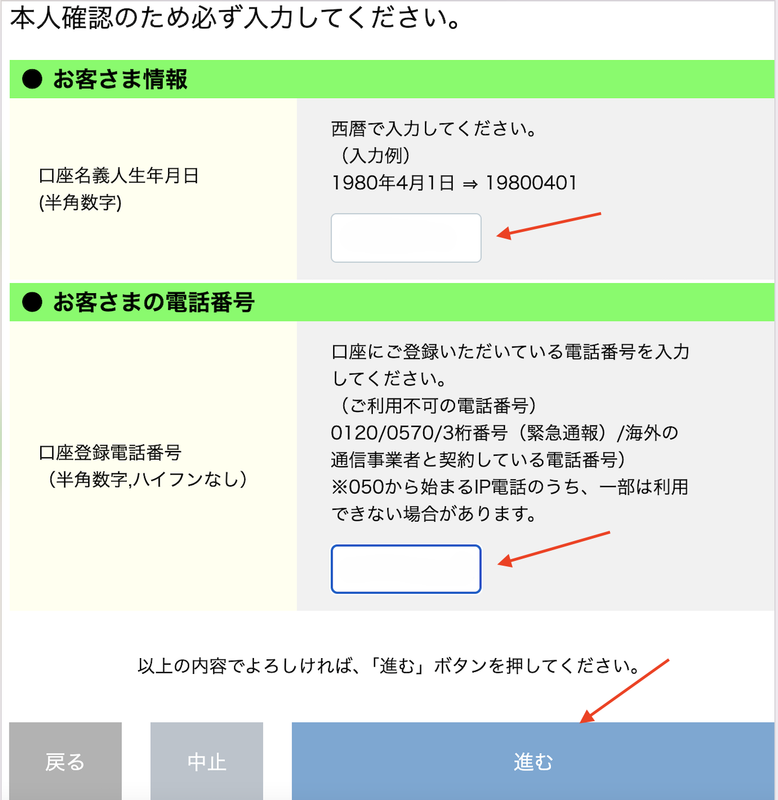
Personal authentication

  • Date of birth: Enter in YearMonthDay format without spaces.
    (For example, if you were born on 15/06/2004, type 20040615).
  • Phone number: YOU MUST ENTER THE EXACT PHONE NUMBER REGISTERED WITH YUCHO BANK (no dashes or spaces). If you enter the wrong number, you will not receive the verification code!
  • Then, click the 「進む」 (Proceed) button.
Step 19
20

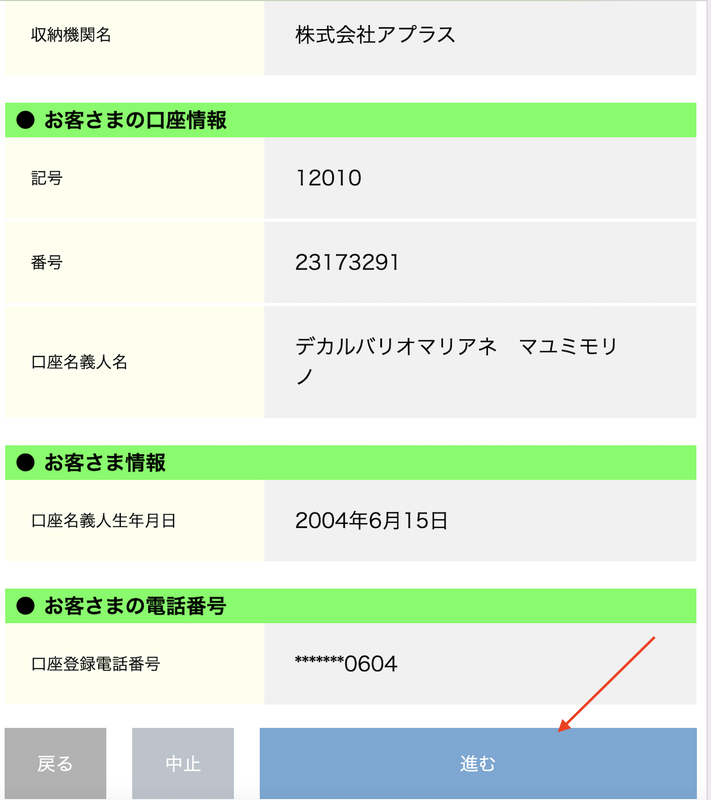
Review the information

The screen will display all the information you just entered again.

Review it carefully once more. If everything is correct, click the blue 「進む」 (Proceed) button.

Step 20
21

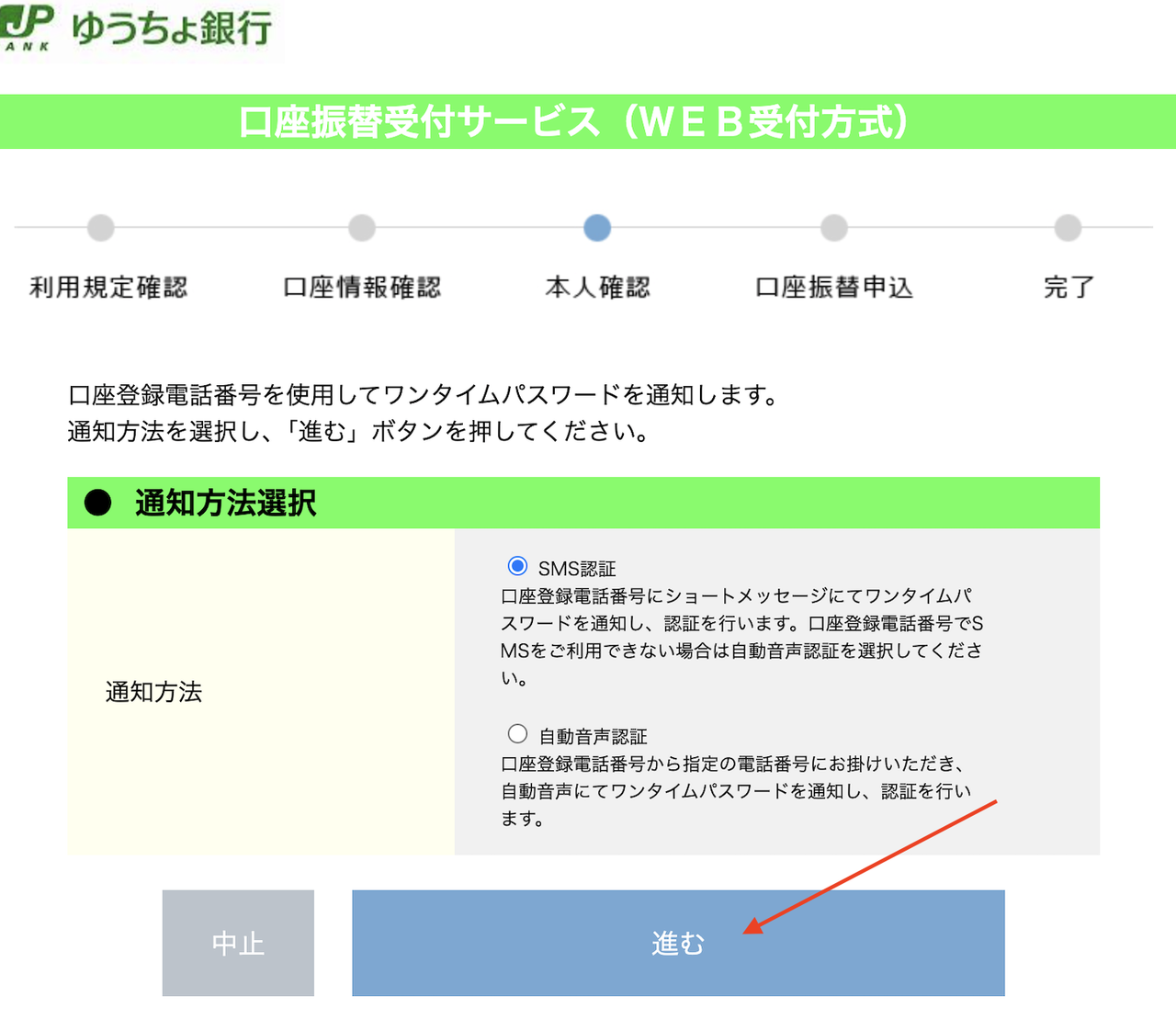
OTP receiving method

Check the first circle option:
「SMS認証」 (SMS Authentication) to receive a one-time password (OTP Code).

Then, click the 「進む」 (Proceed) button.

Step 21
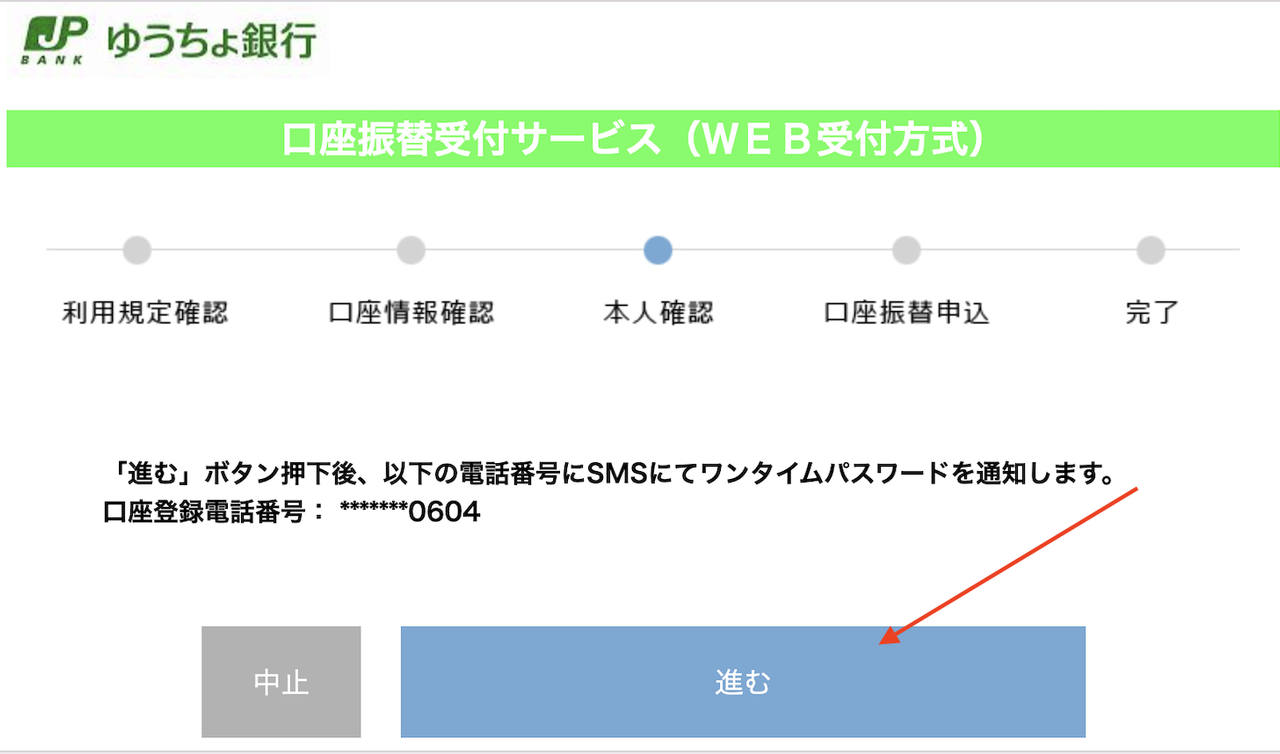
22

Send verification code

The system will confirm the phone number that will receive the SMS message.

Click 「進む」 (Proceed). The bank will send a text message containing the OTP code to your phone. Get this code and enter it in the next step to complete!

Step 22
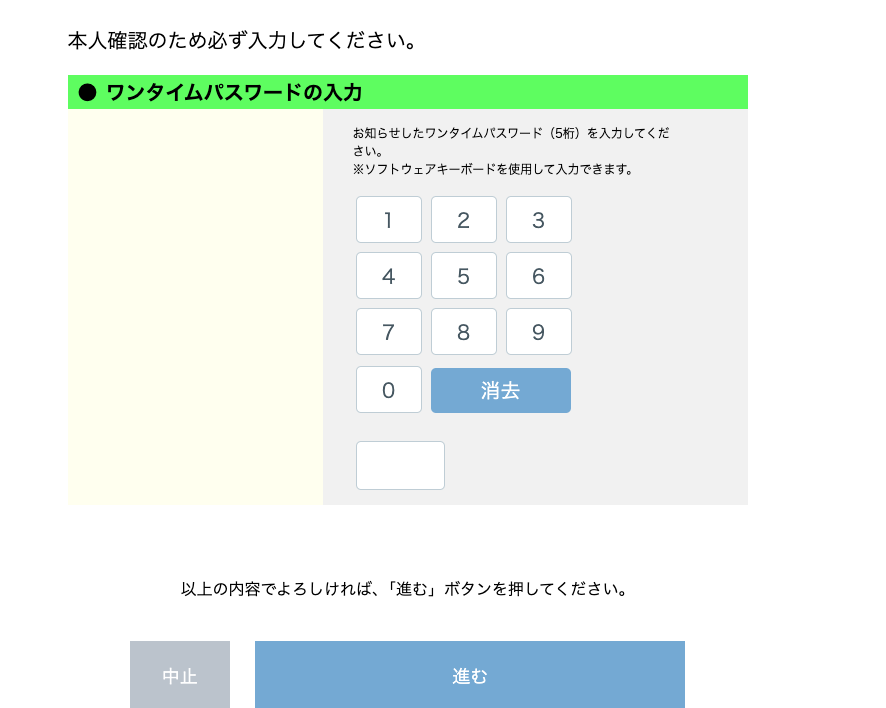
23

Enter OTP code (5 digits)

Check your phone messages and get the 5-digit verification code (OTP).

Use the on-screen virtual keyboard to enter these 5 numbers into the empty box, and then click the blue 「進む」 (Proceed) button.

Step 23
Security
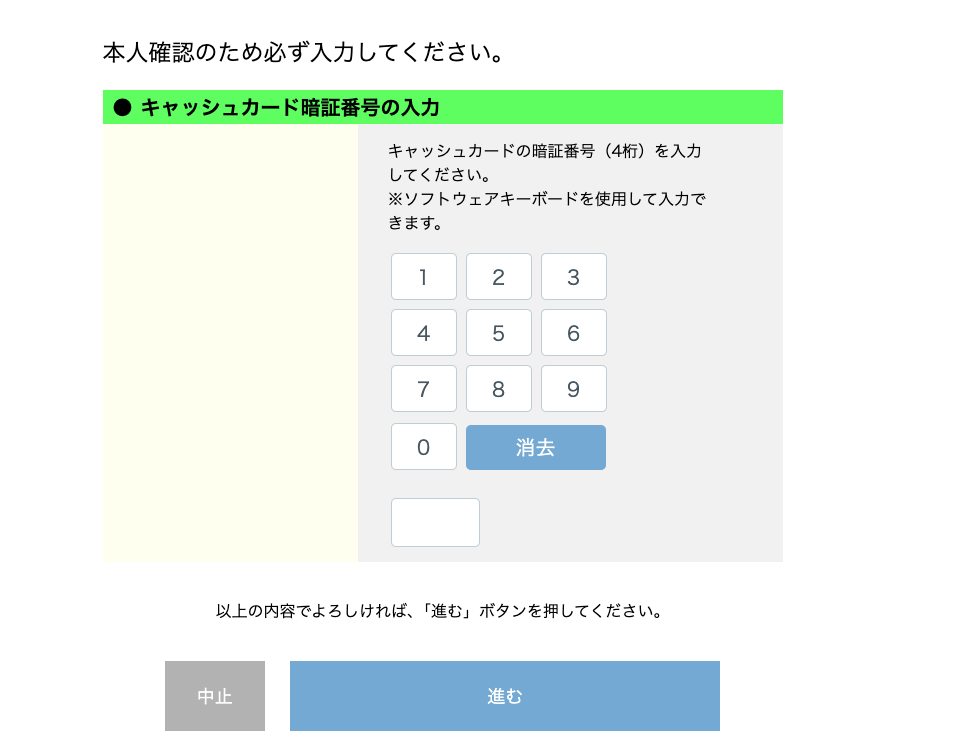
24

Enter card password (4 digits)

This is the final security step to confirm you are the cardholder.

Continue using the virtual keyboard to enter the password (4-digit PIN Code) of your Yucho bank card. Afterwards, click the 「進む」 (Proceed) button.

Step 24

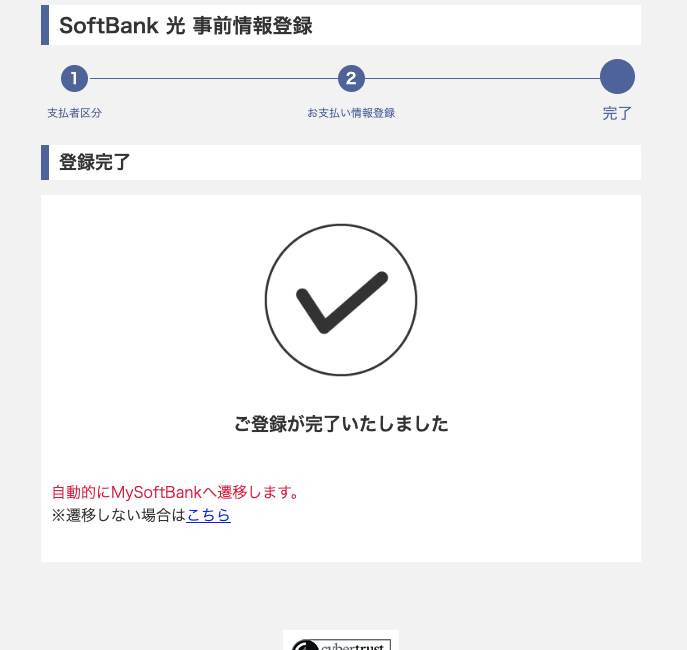
Procedure completed

When the screen shows a large check mark icon (V) with the text 「ご登録が完了いたしました」 (Registration completed), it means you have successfully linked your bank account!

The system will automatically redirect you back to the My SoftBank website.

Step 25

Congratulations, you have completed 100%!

Just correctly follow the 25-step process above, and you can easily set up your SoftBank payment on your own.